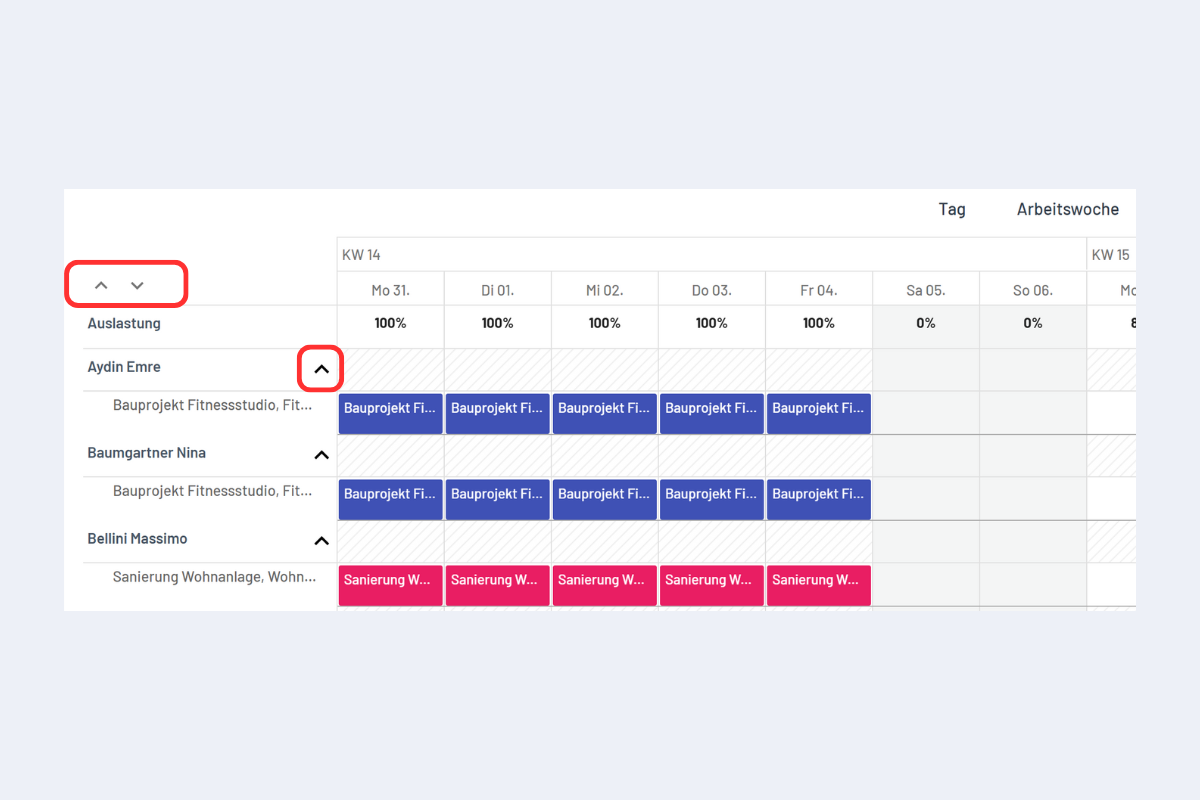
Detail View
You can switch between the overview and the detail view.
Only in the detail view can dispositions – including multiple ones simultaneously by holding the ALT key – be modified, moved, or copied via drag & drop. As soon as multiple dispositions are selected, planr automatically switches to the detail view.
It is also possible to open the detail view for only a single row. To do this, click the individual red-bordered arrow (see Fig. Detail View).
To close the detail view again, click the corresponding upward arrow.