Add New Project
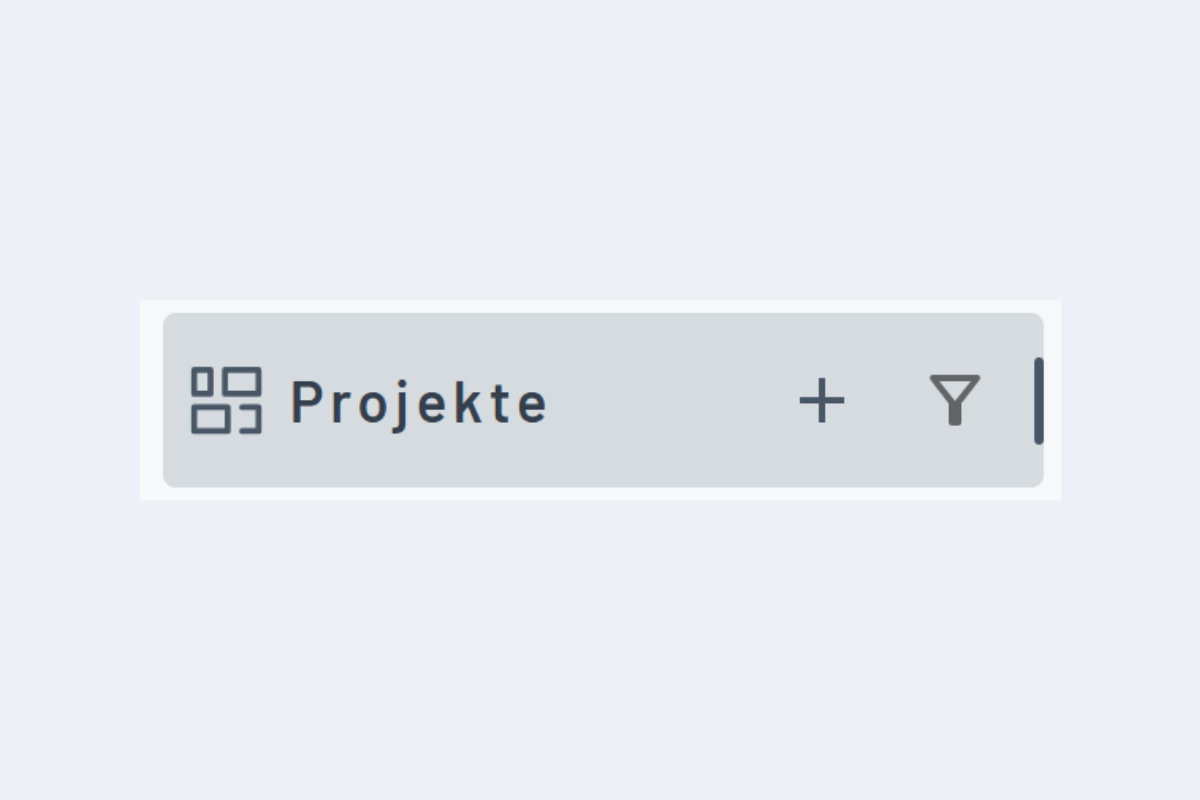
New projects can be added manually via the plus sign (see Fig. Add New Project). A window opens to enter the data (see Fig. Window Add New Project).
- Branch Office: Set automatically.
- Order Number: Created automatically or transferred via interface for Enterprise customers.
- Description: The name under which the project is saved in planr (mandatory field).
- Display Name: If the project should be displayed in planr with a different name, it can be defined here. This is particularly helpful if projects are imported via an interface and contain, for example, long project numbers. An alternative display name can simplify their presentation.
- Project Manager: The project manager can be added to the project. This is helpful later when applying filters.
- Project Start and Project End: Everything between the start and end is highlighted in green in the calendar. However, this color highlighting is purely informative. Dispositions can also be created outside this period.
- Note: If notes are added to a project, this is indicated – as with employees – by an "N" to the right of the project description.
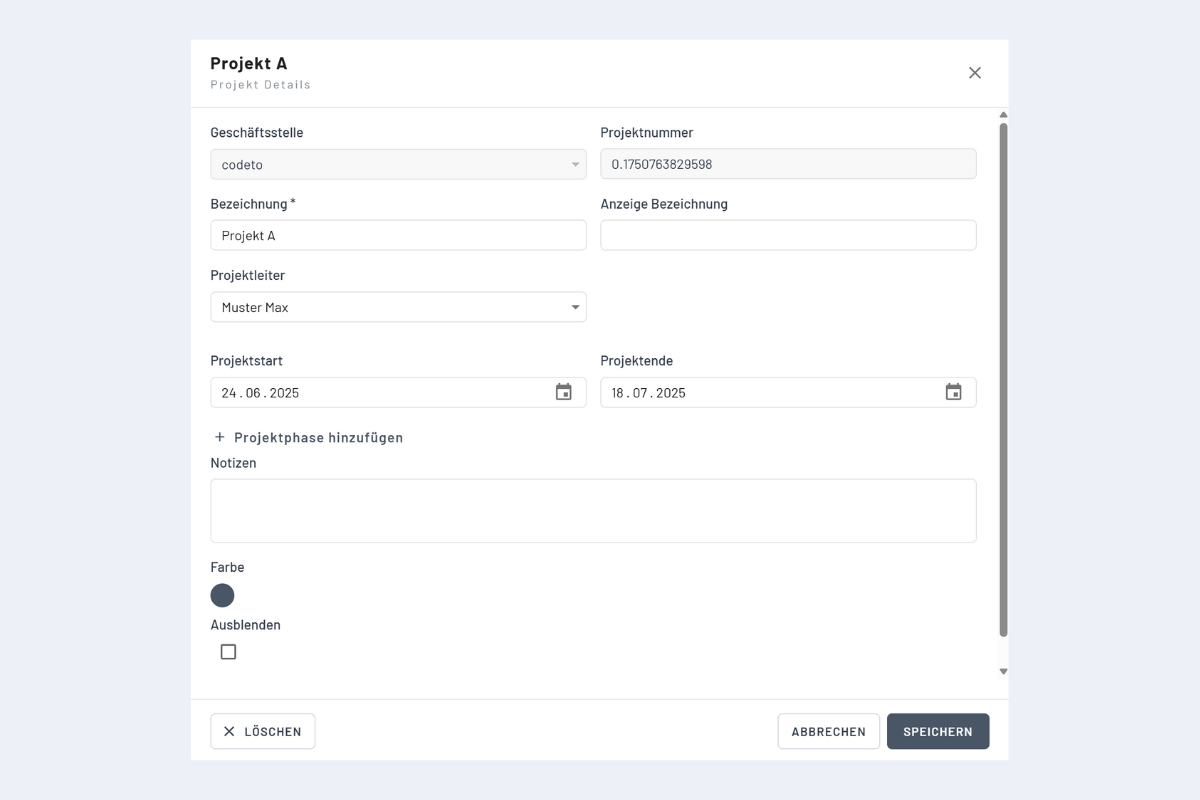
Clicking on the name of an existing project opens additional options, including "Hide". If this option is activated, the project no longer appears in the project list.
How to show a hidden project again is described in the chapter Employees / Hiding and Showing Employees. The process works the same for projects and employees.