Create Disposition in Project View
If you want to learn how to create a new disposition, you can find the detailed description in the chapter Create New Disposition.
This chapter deals with the window that opens when a new disposition is created in the project view.
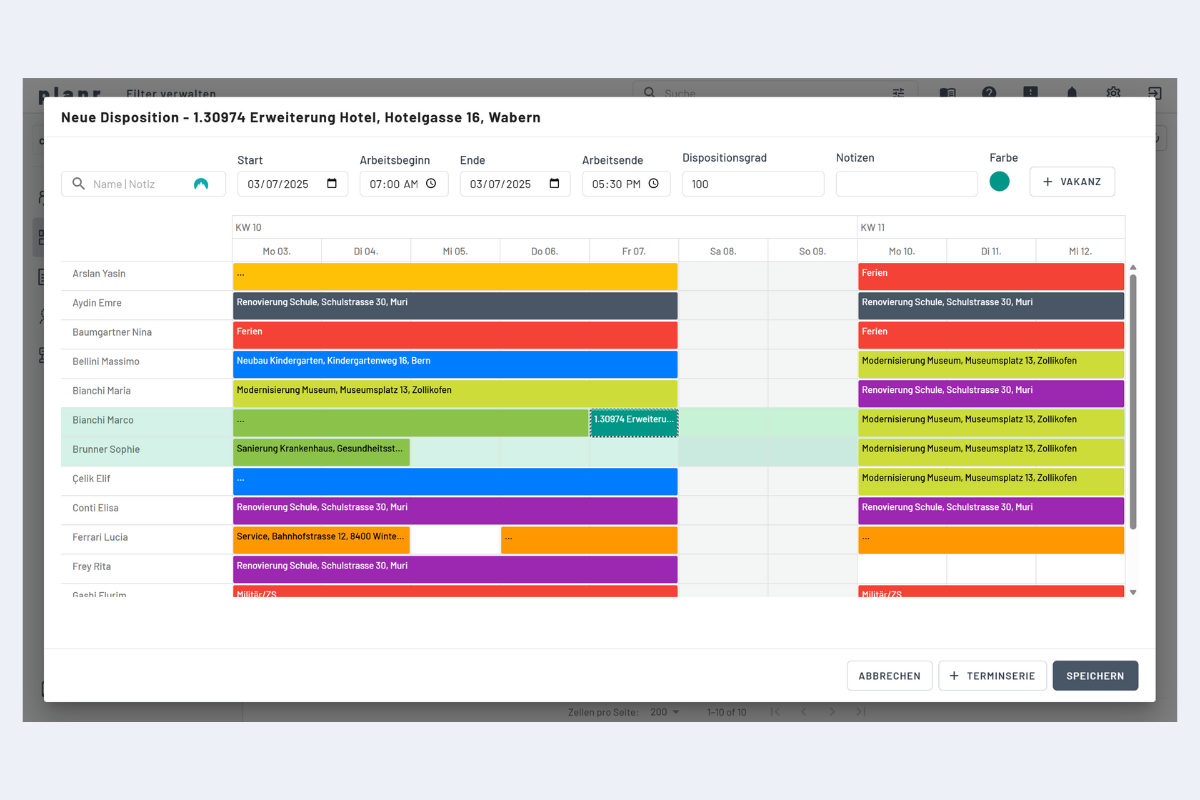
In this example (see Fig. Window Add New Project), a new disposition for one day (March 7th) for the project "Hotel Expansion" was created using drag & drop. This window then opens.
Disposition Level: The disposition level is 100% by default. By reducing the disposition level, an employee can be assigned to multiple orders simultaneously. This is useful if an employee manages multiple orders and decides independently when to be where (more information on the disposition level under Employees / Create New Disposition in Employee View).
Employees highlighted in green are still available during the selected time period. Clicking on the employee or anywhere on their line selects them, and the disposition appears outlined in black and white.
In this example, Bianchi Marco is selected. Multiple employees can be selected simultaneously using the CTRL key. Saving creates the dispositions.