Create New Dispatch in the Employee View
If you want to learn how to create a new dispatch, you can find the detailed description in the chapter Create New Dispatch.
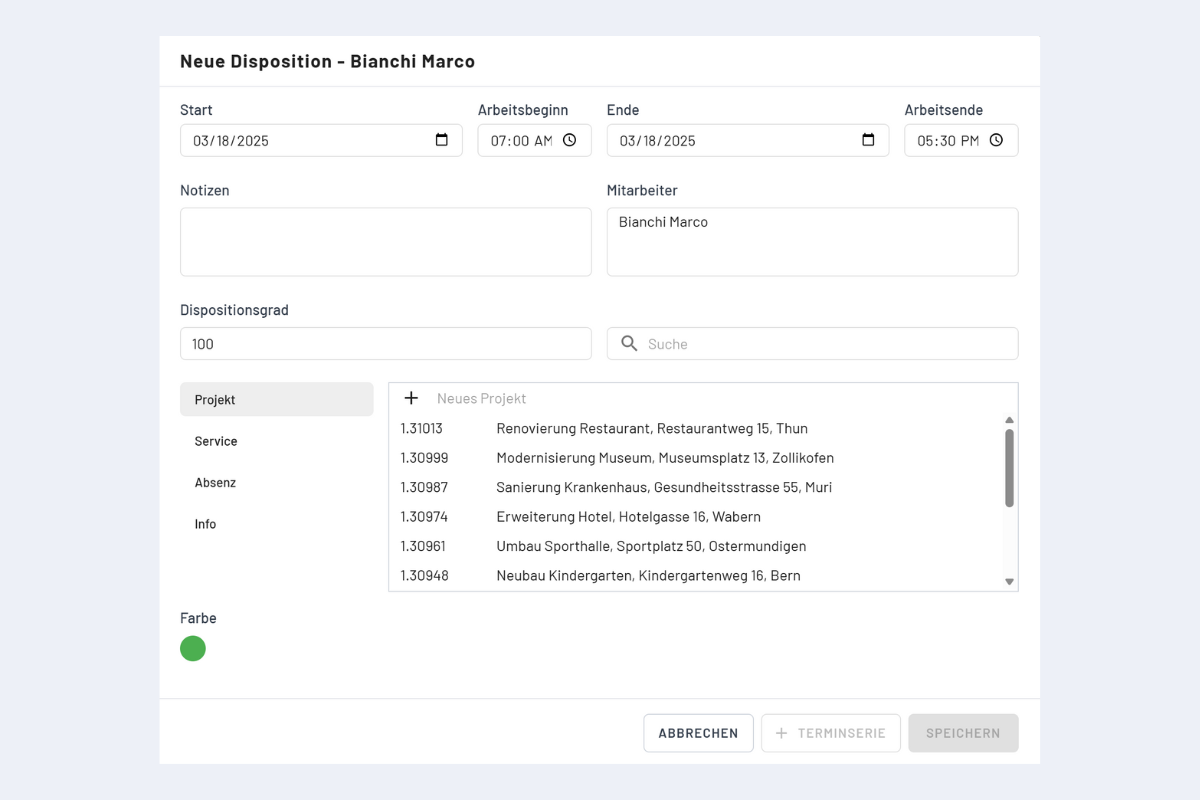
This chapter deals with the window that opens when a new dispatch is created in the employee view.
-
Notes: Any notes can be entered here, which are displayed to the employee in the mobile view on the smartphone when viewing this dispatch.
-
Employee: Clicking on the employee (in this example Bianchi Marco) allows selecting multiple people to create the dispatch for all simultaneously.
-
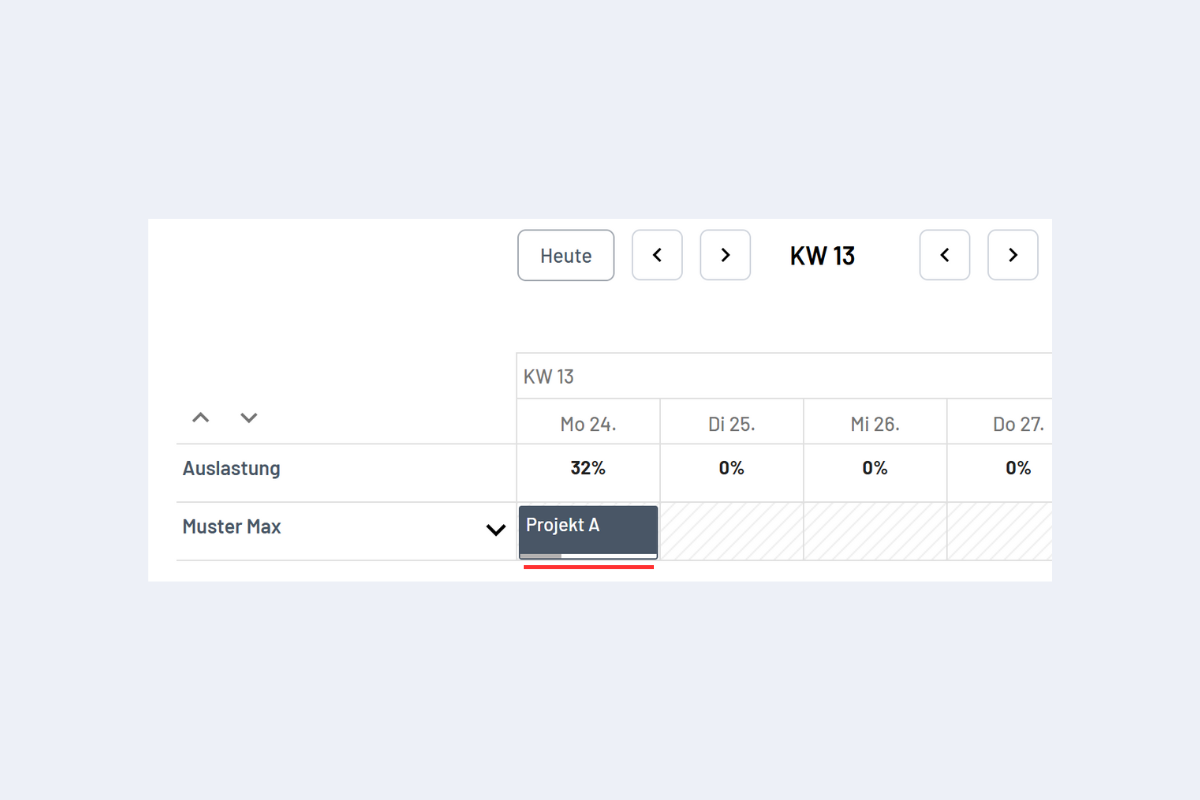
Dispatch Level: The dispatch level is 100% by default. By reducing the dispatch level, an employee can be assigned to multiple services simultaneously. This is useful if an employee manages multiple orders and decides themselves when they are where. The sum of the dispatch level per employee must not exceed 100% for a specific period. If the dispatch level is below 100%, the corresponding percentage is displayed in the bar at the bottom of the dispatch (see Fig. Display Dispatch Level above the red line).
-
Search: In the search field, you can search for existing entries within the selected category (Project, Service, Absence, or Info).
-
Project: Here you can select which project the employee should be dispatched to. In the top row "New Project", a new project can be created. However, it is recommended to create projects in the project view with all required specifications (more on this in the chapter Create New Project).
-
Service: Here you can select which service the employee should be dispatched to. In the top row "New Service Order", a new service order can be created. However, it is recommended to create services in the service view with all required specifications (more on this in the chapter Create New Service Order).
-
Absence: Here you can select which absence the employee should be dispatched to. In the top row "New Absence", a new absence can be created. However, it is recommended to create absences in the absence view with all required specifications (more on this in the chapter Create New Absence).
-
Info: Information bookings or information dispatches are purely informational. Further dispatches can be made during this period. These entries serve to convey information that does not concern a project, service, or absence (e.g., "Employee Muster is working from home").
-
Color: The color can be individually adjusted for each dispatch.