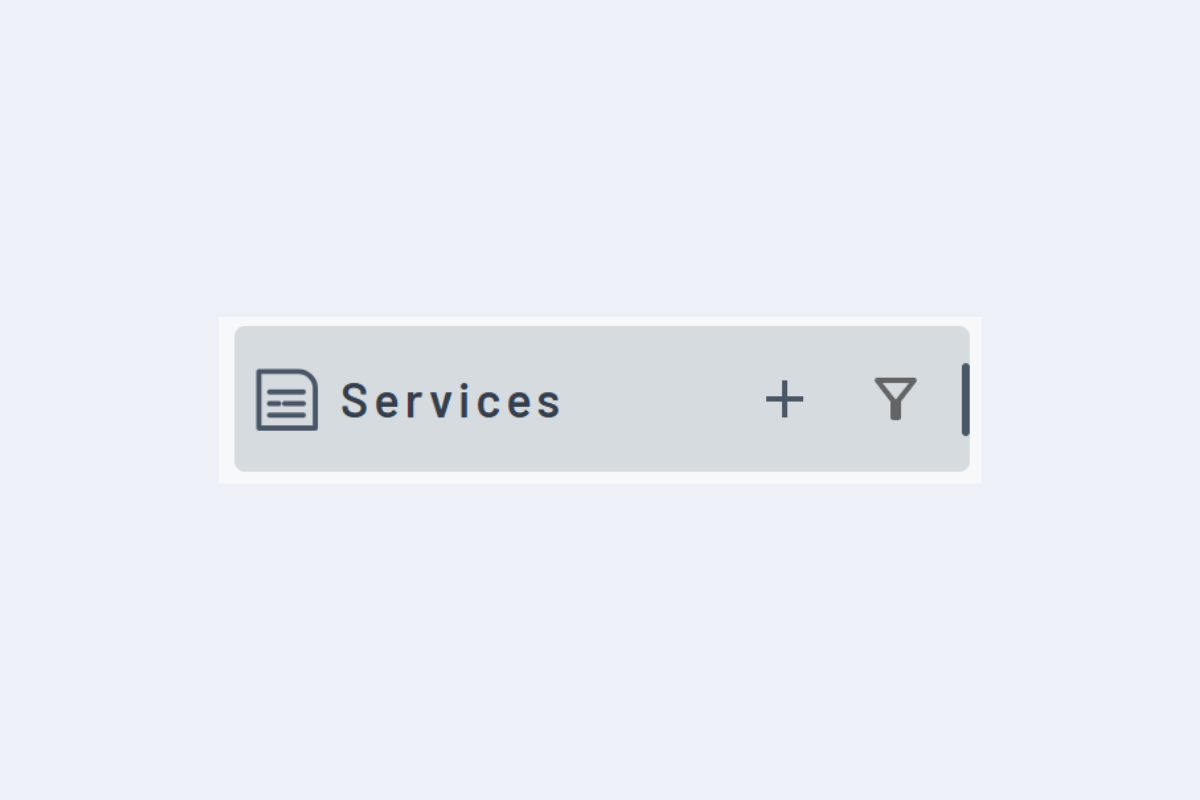
Create New Service Order
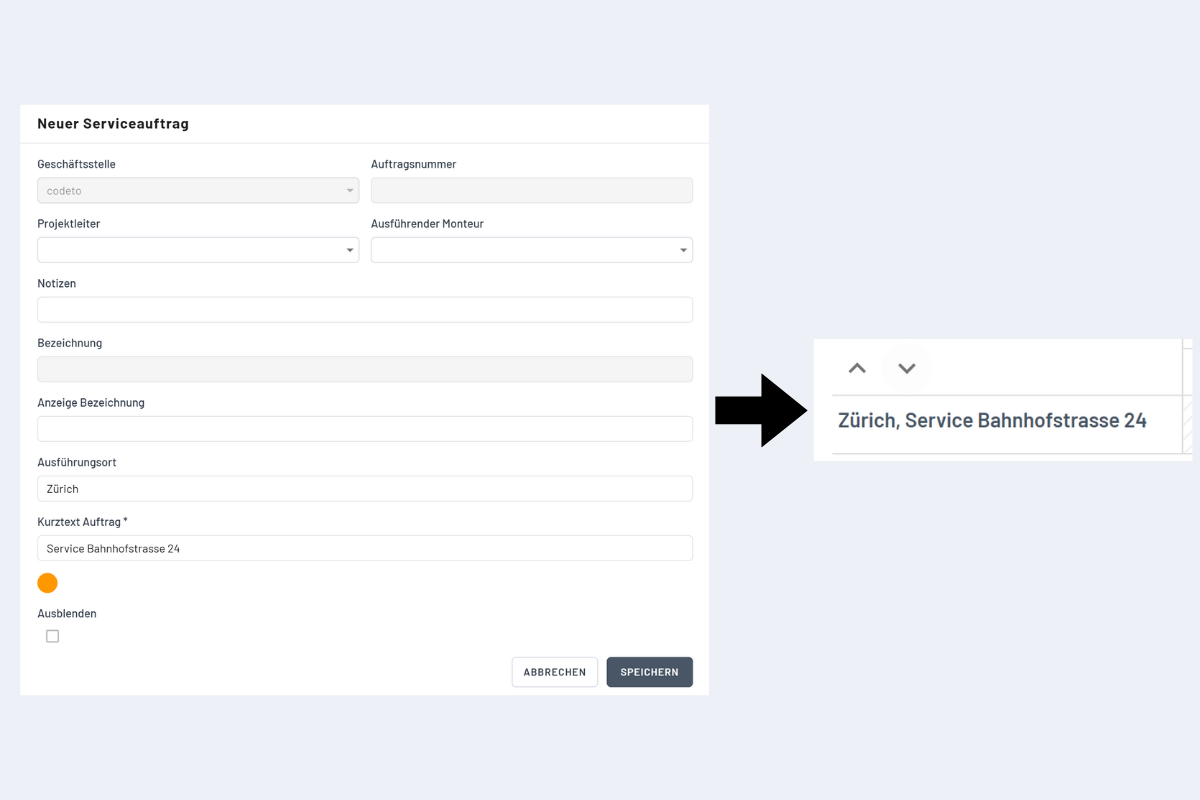
New service orders can be manually created using the plus sign (see Fig. Create New Service Order). A window opens to enter the data (see Fig. Create New Service Order Window).
- Branch: Set automatically.
- Order Number: Automatically created or transferred via interface for Enterprise customers.
- Project Manager: Responsible project manager for this service order.
- Executing Technician: Technician performing the order (purely informational – other employees can still be scheduled for this service order).
- Notes: Additional information about this service order.
- Name: Transferred via interface for Enterprise customers.
- Display Name: This field can be left empty as it has no effect.
- Execution Location: Appears first in the description of the service order (see Fig. New Service Order Window, right image).
- Short Text Order: Appears second in the description of the service order (see Fig. New Service Order Window, right image, mandatory field).