Add New Employee
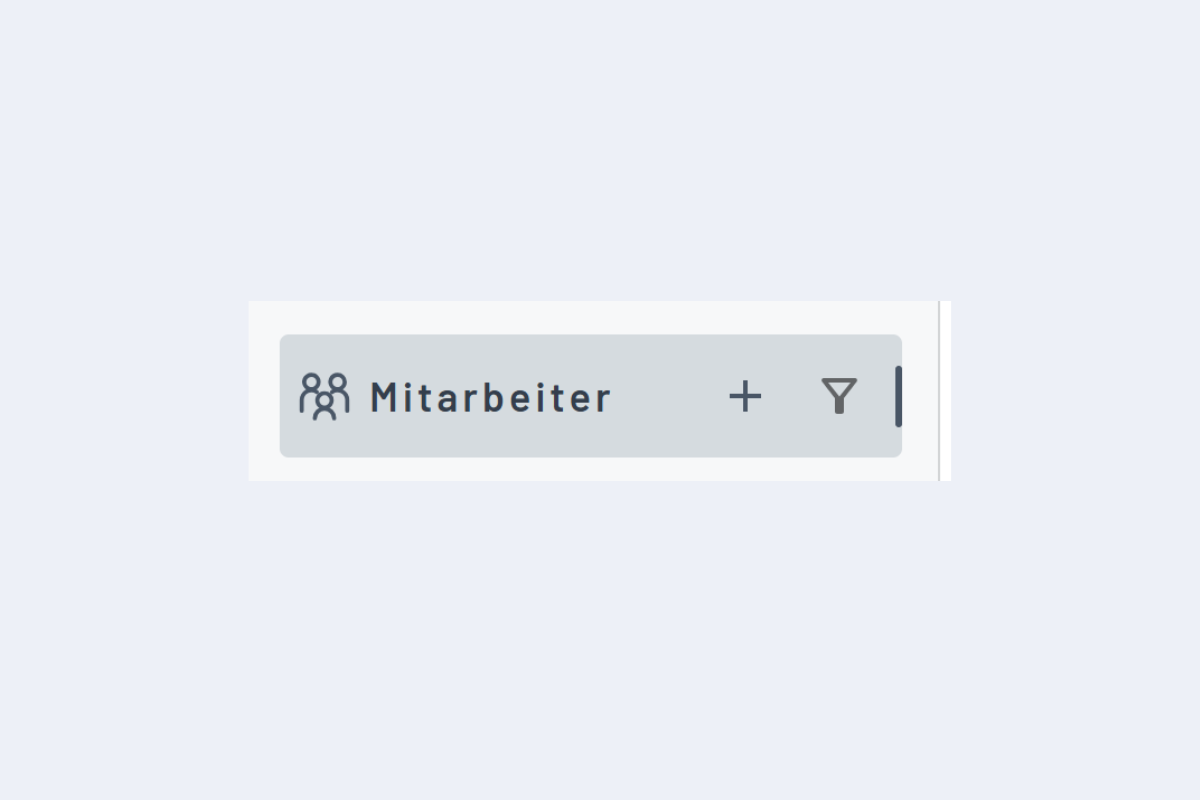
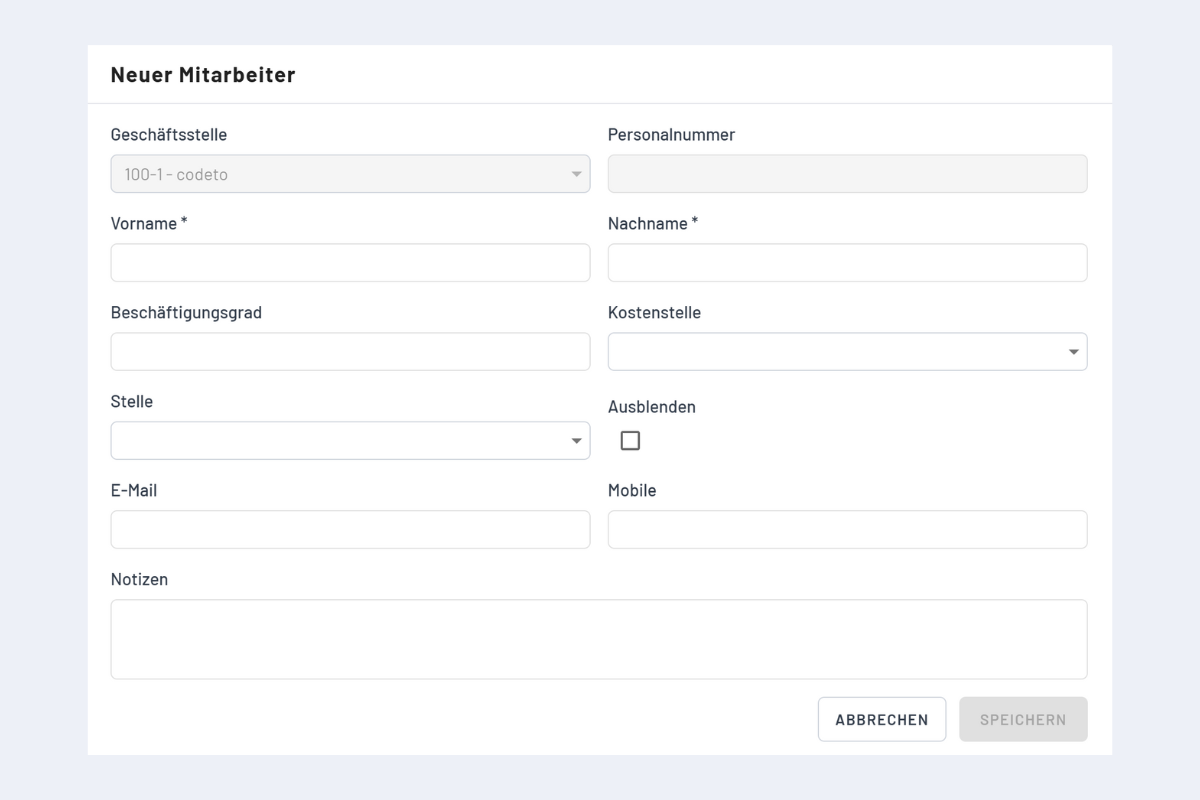
New employees can be added manually via the plus sign (see Fig. Add New Employee). A window opens to enter the data (see Fig. Window Add New Employee).
- Branch Office: Created automatically or via interface (for Enterprise customers).
- Personnel Number: Created automatically or via interface (for Enterprise customers).
- First Name & Last Name: The employee's name (mandatory fields).
- Employment Level: 1-99%
- Cost Center: Only for Enterprise customers if the information is transferred via interface.
- Position: Role/characteristic of the employee (Manager, Assembly Worker, Temporary Staff, Site Manager, Project Manager, Planner, Apprentice, Commercial Employee).
- Email, Mobile, Notes: Corresponding information and additional notes.
If the "Hide" box is checked, this employee is no longer visible in the employee list (see Fig. Alphabetical Employee List). How to show this employee again is described in the chapter Employees / Hiding and Showing Employees.
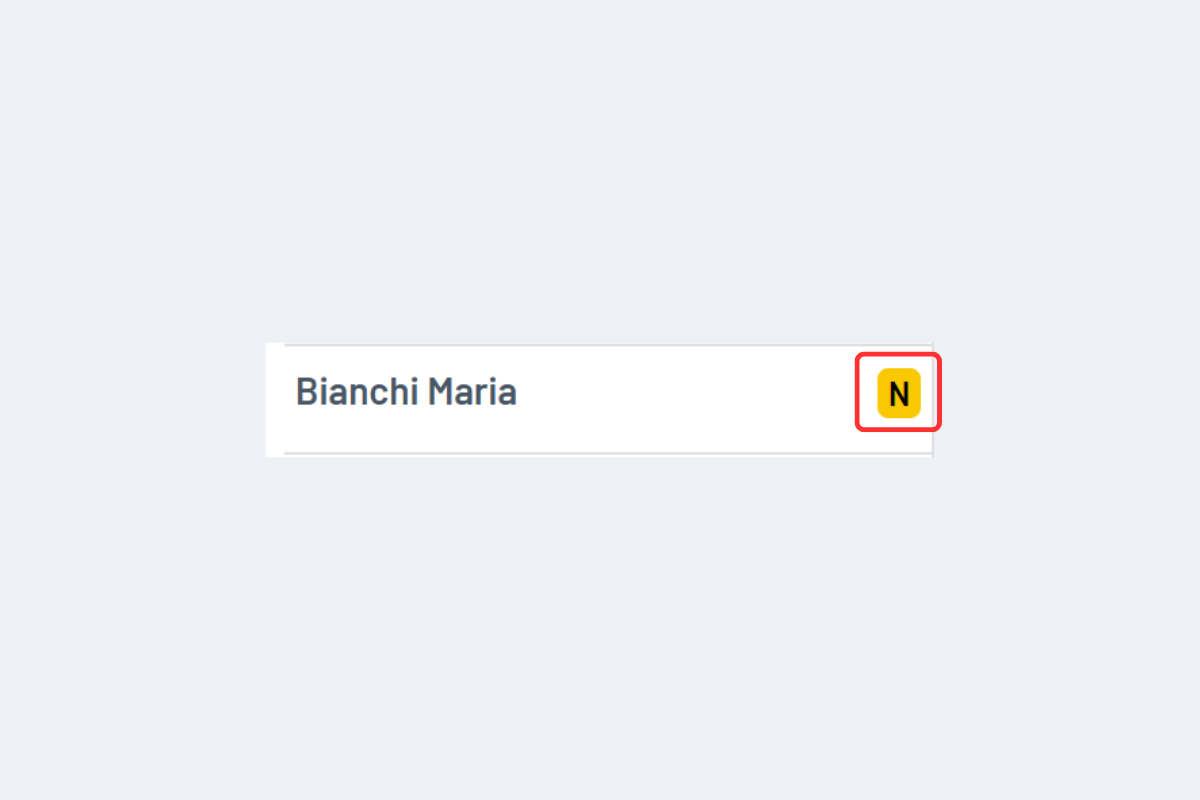
If a note is added to an employee, this is indicated by an "N" after the name (see Fig. Note Created).
The employees are listed alphabetically (see Fig. Alphabetical Employee List).
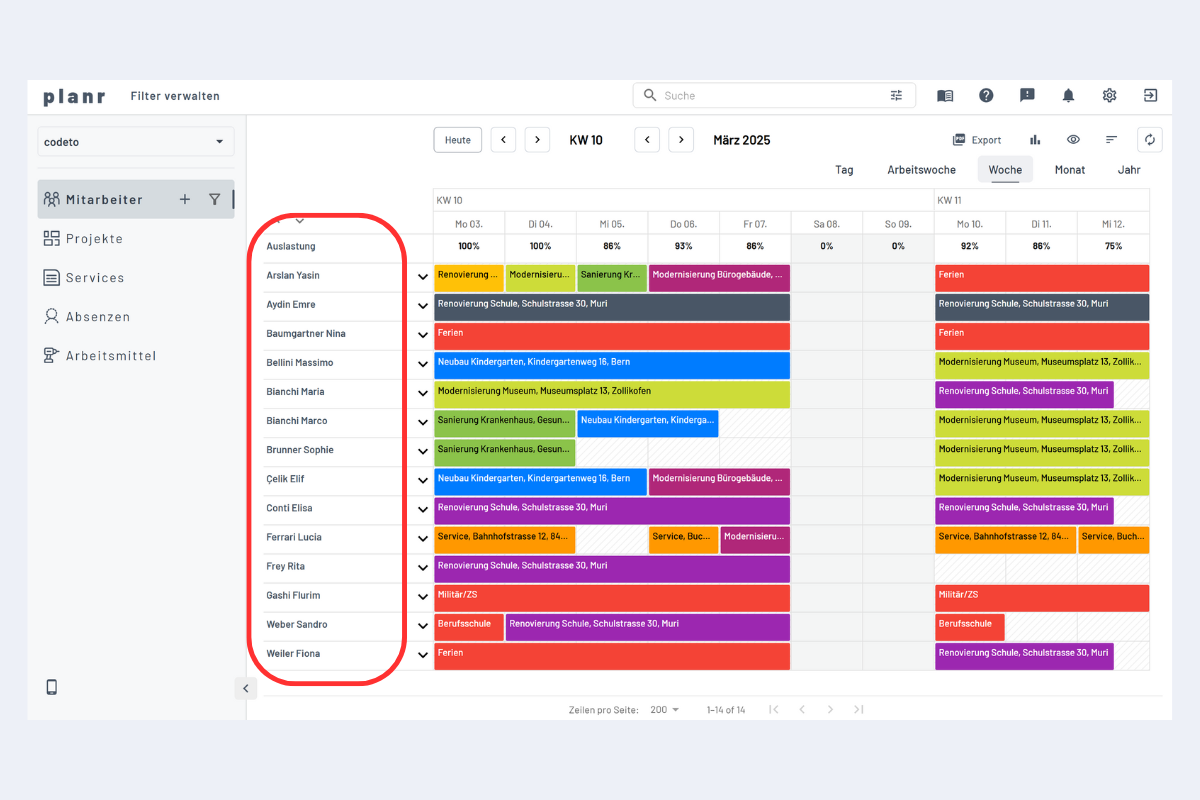
Clicking on an employee's name in the employee view opens a window where the data can be edited again.