Edit Scheduling in Mobile View
This example shows the view of Fabio Conti. He is a technician and has not only read permissions but also write permissions. This allows him to edit existing scheduling entries and create new ones.
These examples refer to Service Orders, but the same applies to Projects.
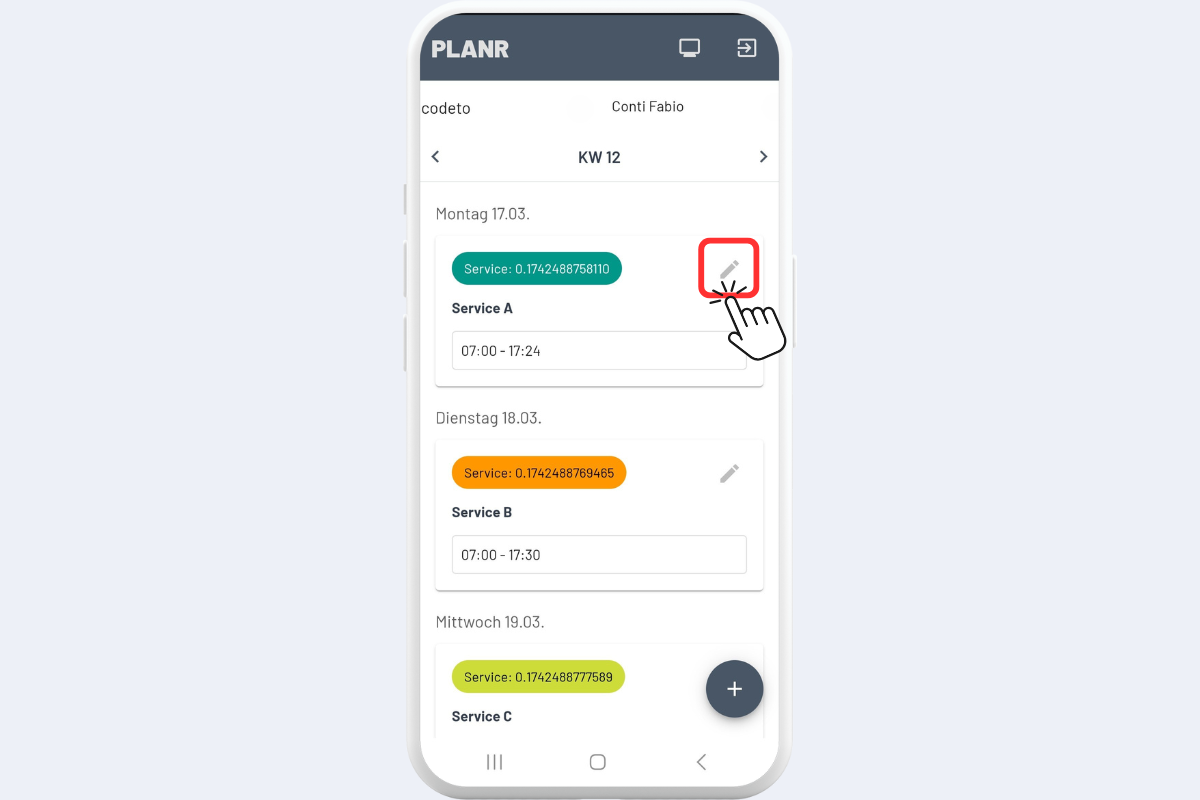
To edit a scheduling entry, click the Pencil icon on the corresponding Service Order – in this case, Service A (see Fig. Edit Scheduling).
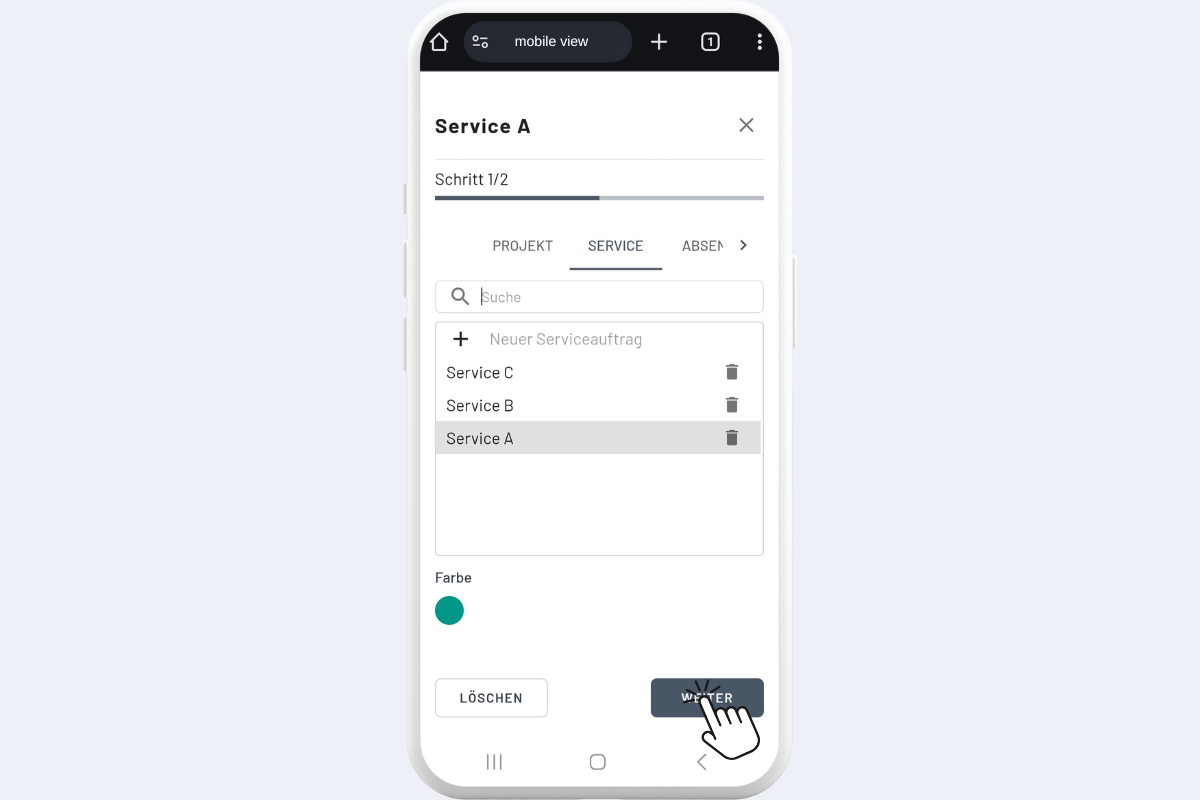
- If the existing scheduling entry should be assigned to a different service order, select the desired service order, for example, Service B (see Fig. Edit Scheduling 2).
- If only the Date, Time, or Notes of the current scheduling entry should be adjusted, click Next.
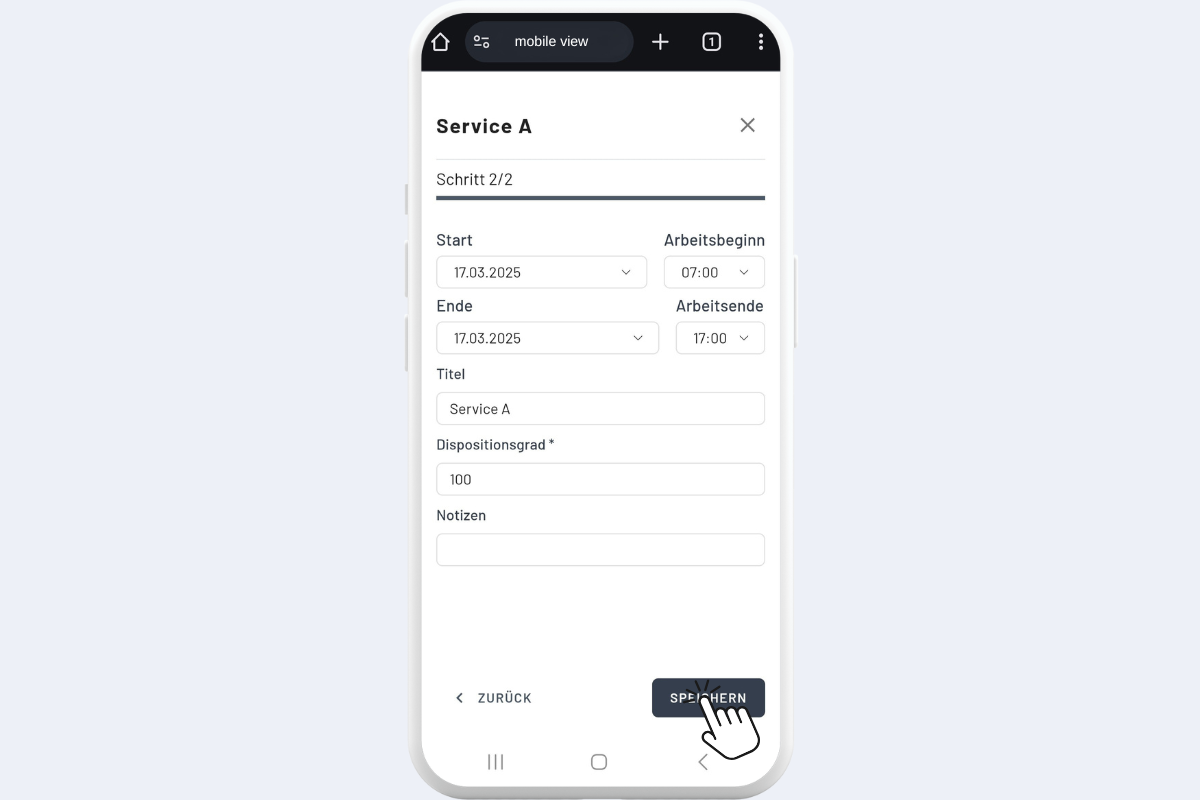
Now the changes can be made and saved (see Fig. Edit Scheduling 3).