Create Scheduling in Mobile View
This example shows the view of Fabio Conti. He has not only read permissions but also write permissions. This allows him to edit existing scheduling entries and create new ones.
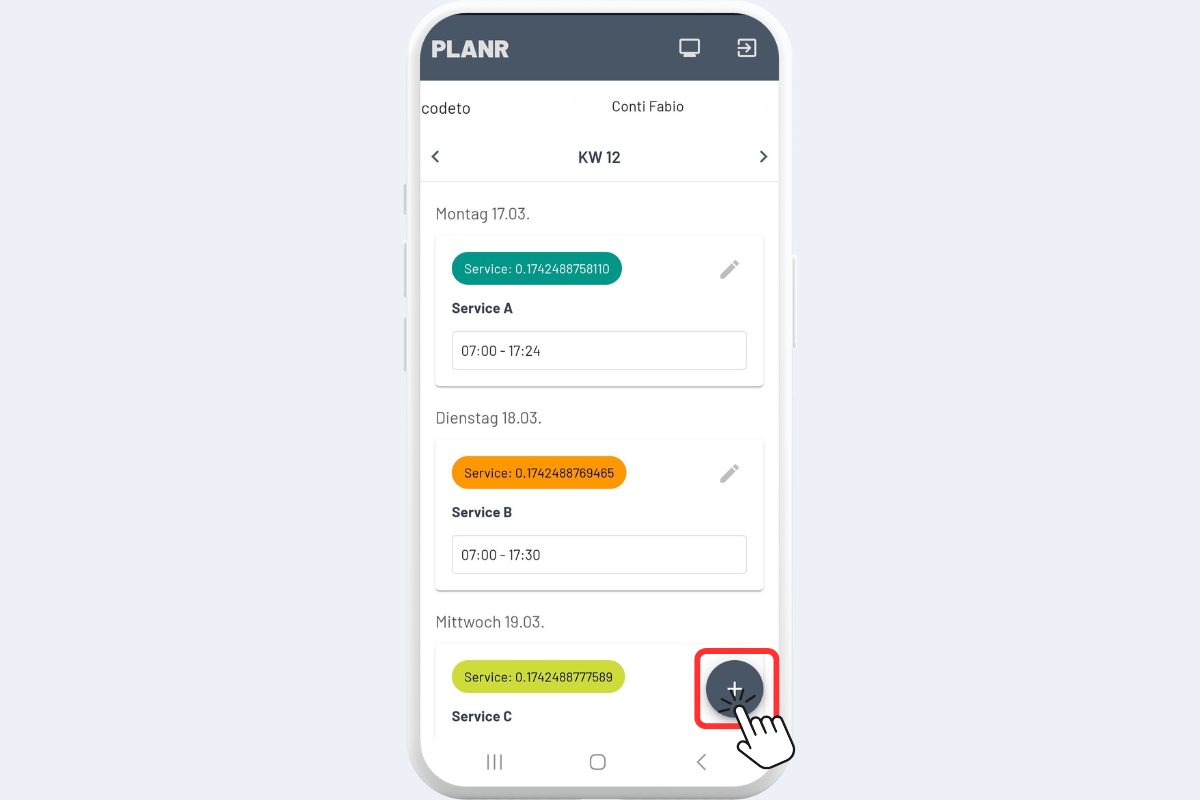
Clicking the Plus button allows creating a new scheduling entry (see Fig. Mobile View - New Scheduling).
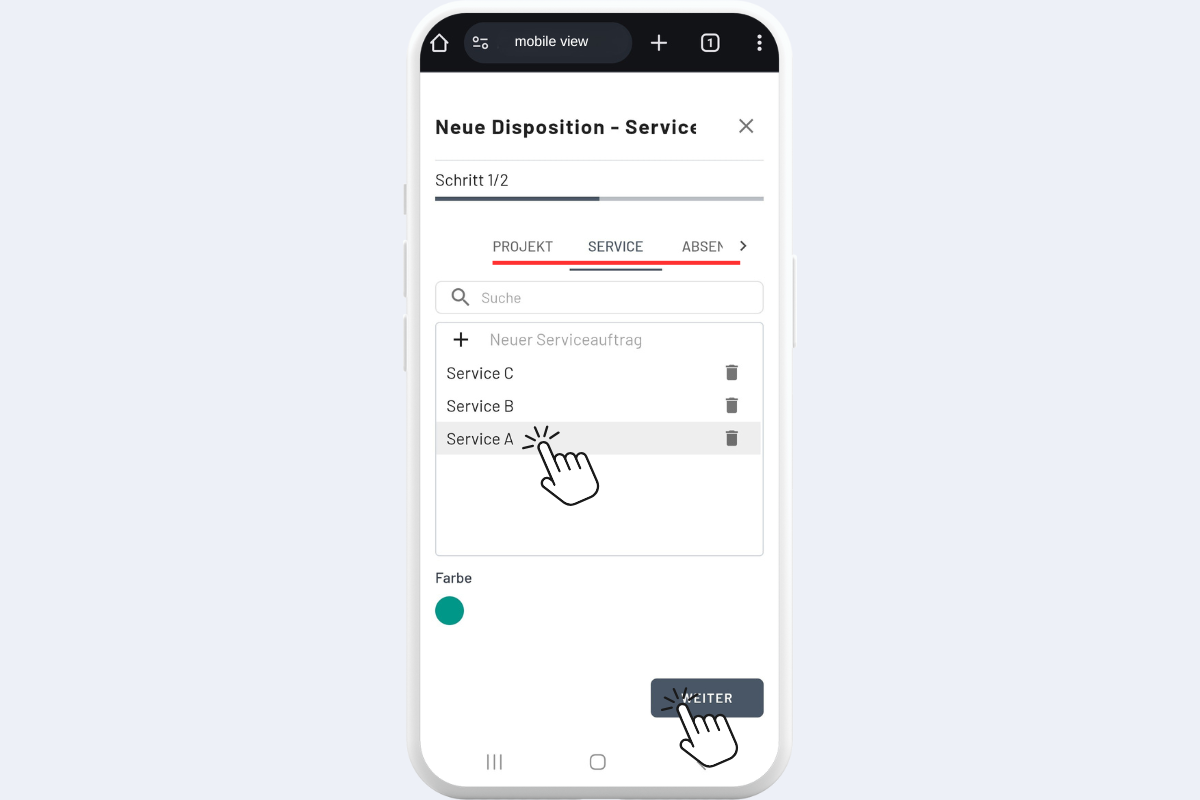
Then select the desired category: Project, Service, Absence, or Info. In this example, a new scheduling entry for Service A is created (see Fig. Mobile View - New Scheduling 2).
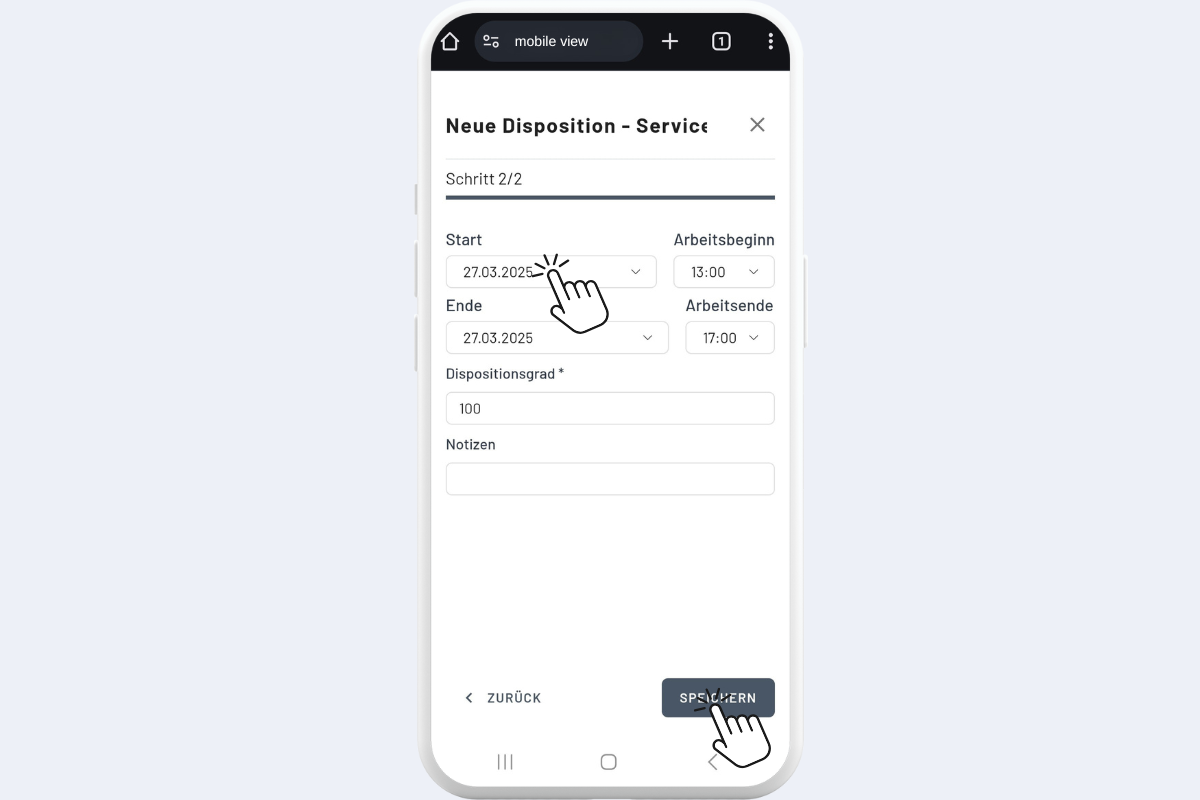
In the final step, set the Date and Time, Workload Percentage, and Notes, then save (see Fig. Mobile View - New Scheduling 3).