Calendar Views
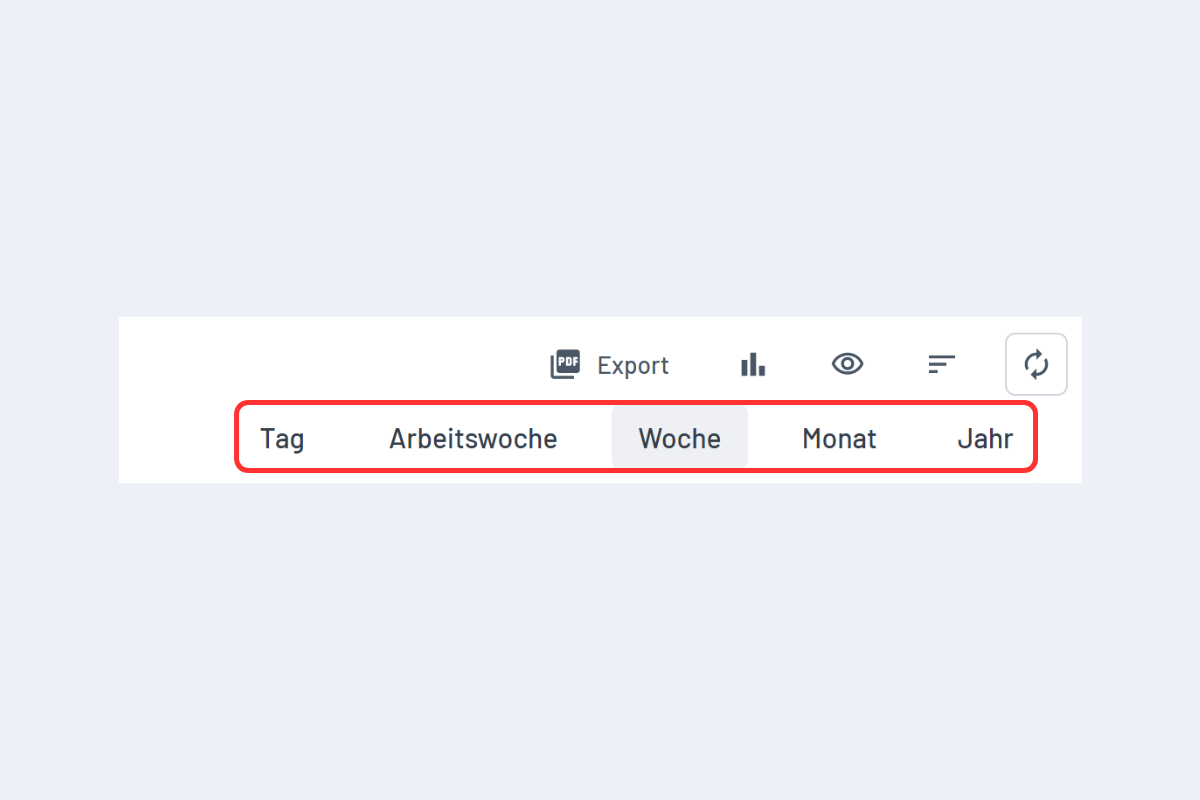
There are five views to choose from – depending on the desired level of detail: Day, Work Week, Week, Month, and Year.
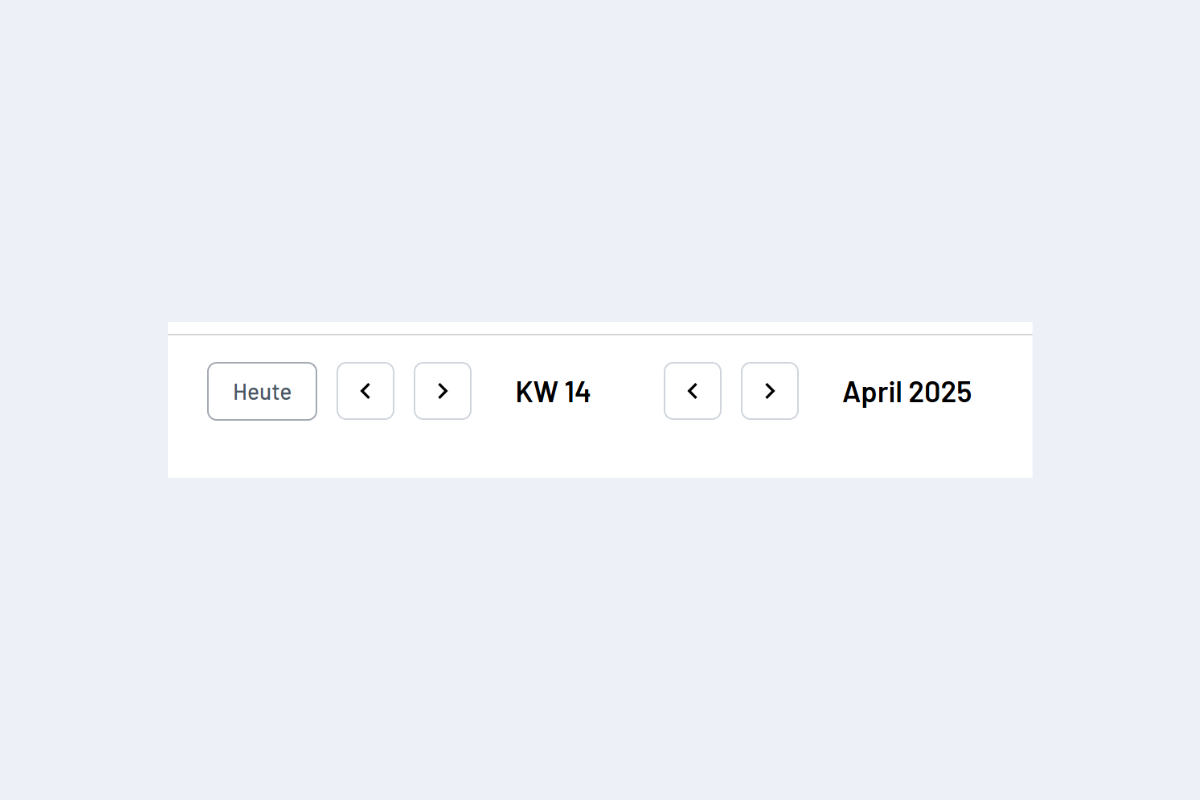
You can jump to the current date at any time using the Today button (see Fig. Change Timeline).
Use the arrow keys on the keyboard (left and right) to jump forward or backward one week. Use SHIFT + Arrow Key (left and right) to change months.
The same applies to the arrows in the user interface (see Fig. Change Timeline).
Quick Navigation to Specific Periods
planr offers various ways to jump directly to a desired period:
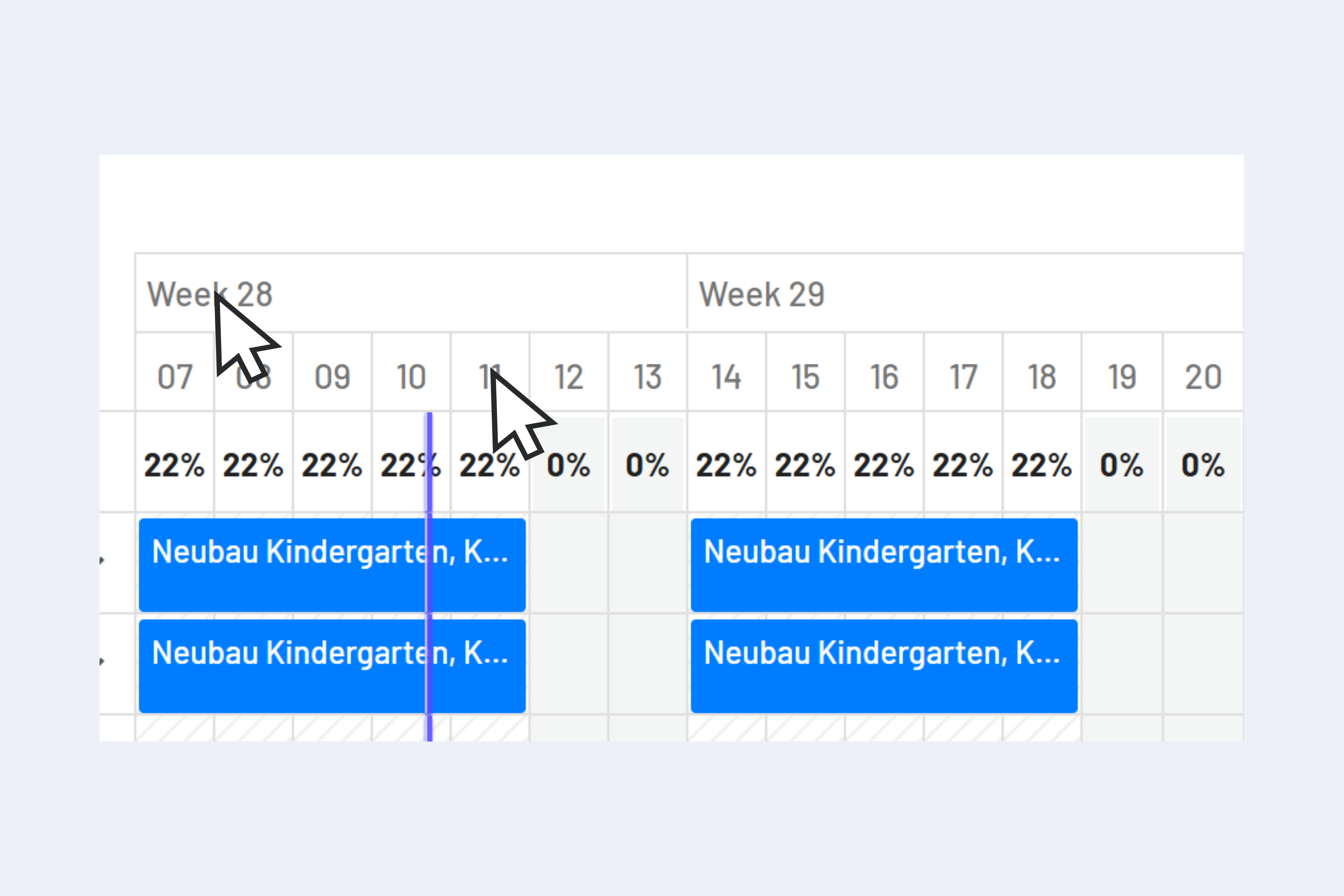
- Click directly on Calendar Week or Day: Click on a calendar week (e.g., "CW 18") or a day (e.g., "01") to jump directly there.
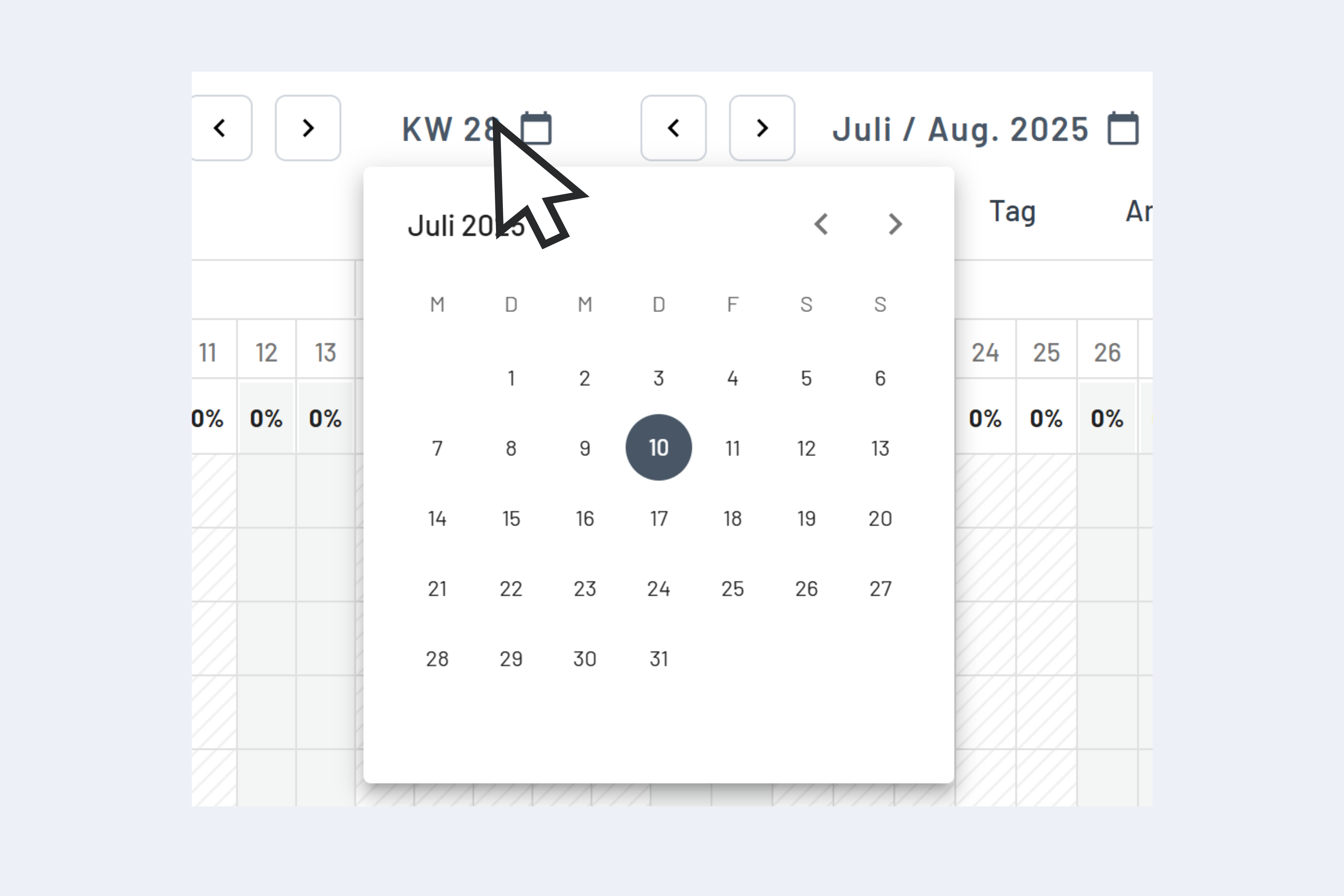
- Use Date Picker: Click on the date in the top bar to open the Date Picker. Here you can select any date.
These navigation options make it easy to quickly switch between different periods without having to use the arrow keys multiple times.