Selecting and Editing Multiple Dispositions Simultaneously
It is recommended to open the detail view to select dispositions (more on this in the chapter Detail View).
There are two ways to select multiple dispositions:
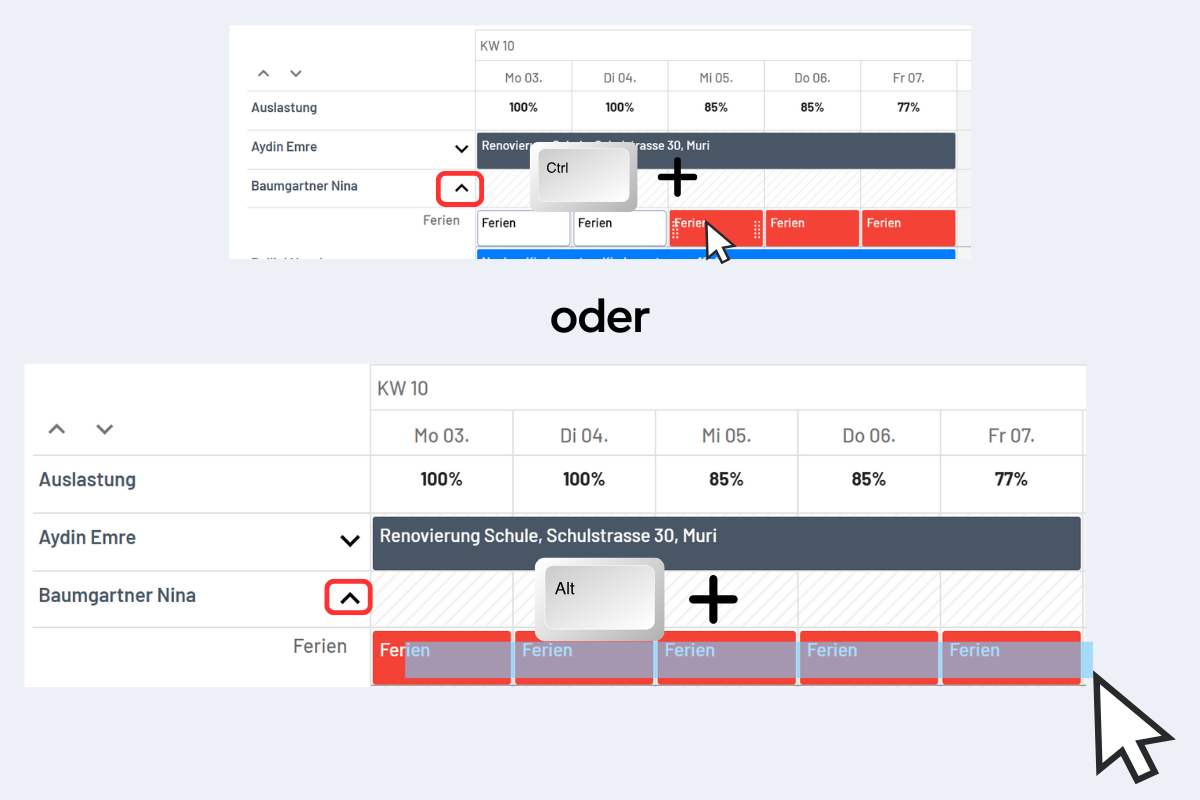
- With CTRL + Click: Hold the CTRL key and click the desired dispositions (see Fig. Select Dispositions, top).
- Hold ALT key and drag a rectangle over the desired dispositions with the mouse (see Fig. Select Dispositions, bottom).
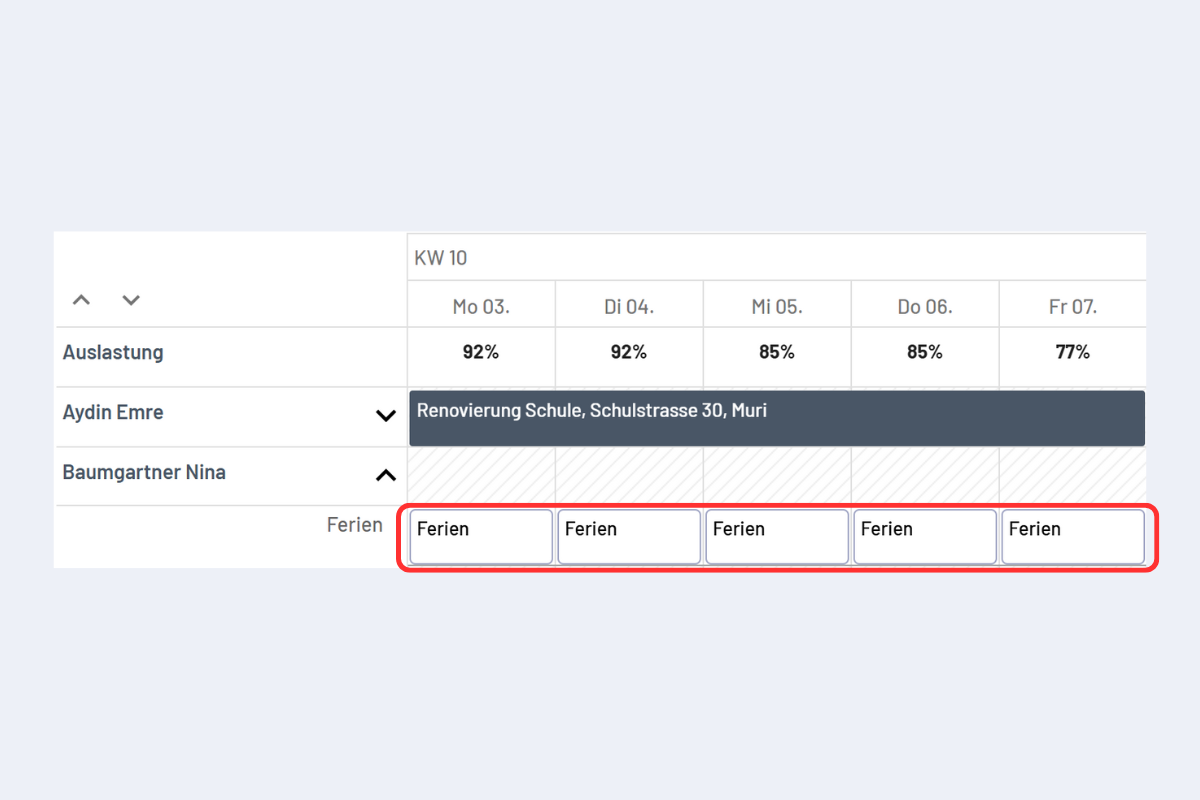
If the dispositions are highlighted in white, they can be edited (see Fig. Selected Dispositions - highlighted white).
The selected dispositions can be copied or moved (More information on copying and moving dispositions can be found in the chapter Copying or Moving Dispositions).
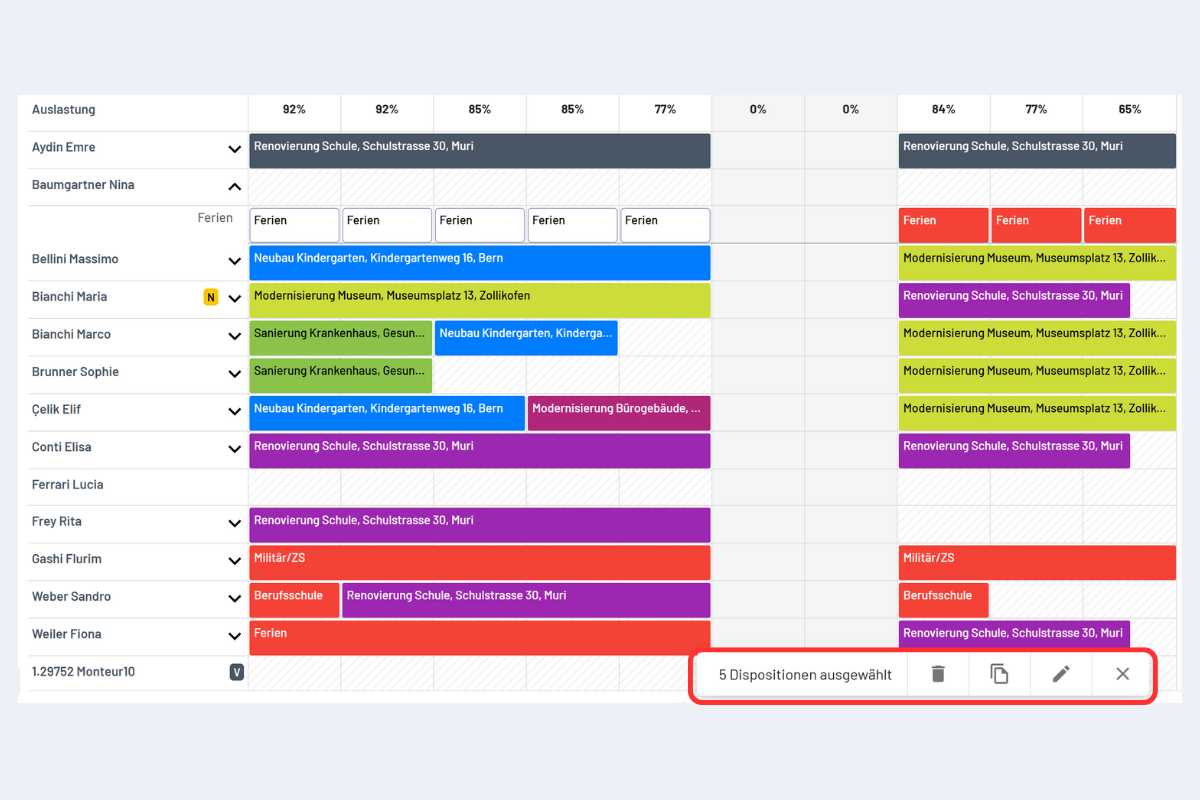
Additionally, there is the option to delete or edit all selected dispositions with one click (see Fig. Multiple Dispositions Selected - Options).