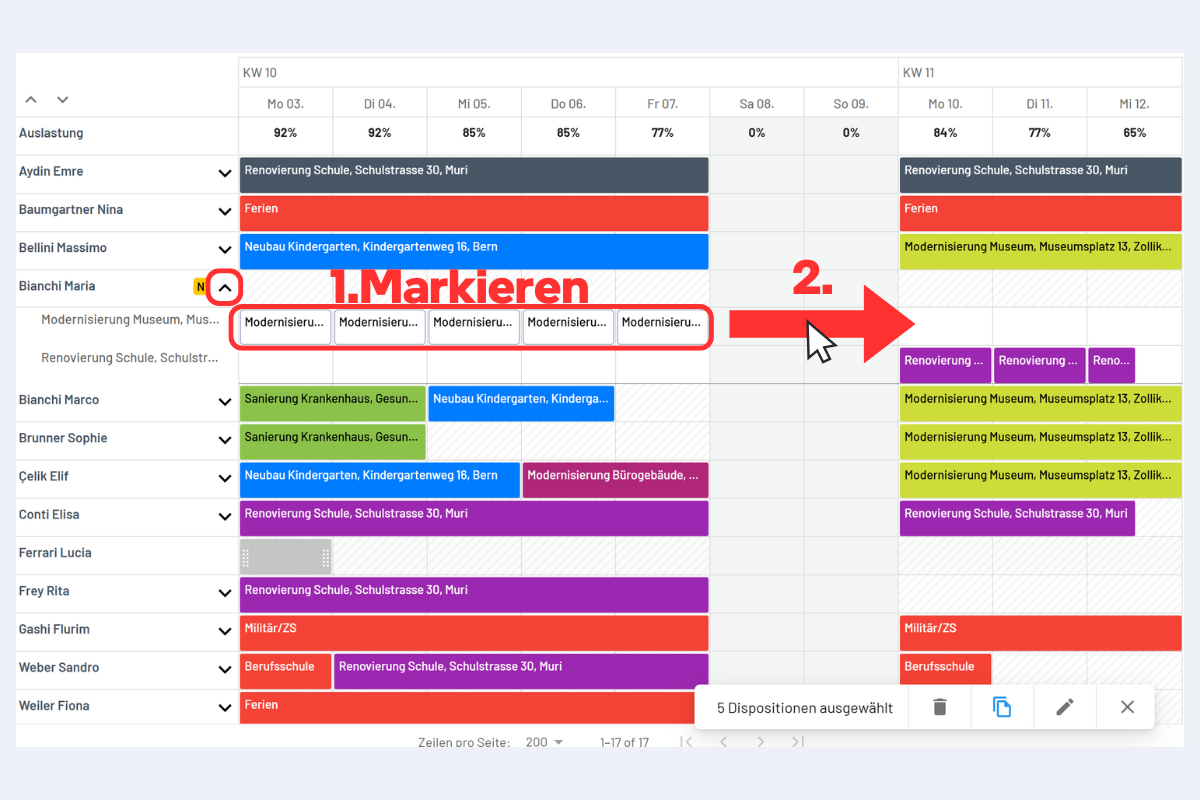
Copying or Moving Dispositions
The "Copy Paste" function in planr allows you to easily copy or cut existing dispositions and paste them elsewhere or for another employee.
Selecting the Disposition (or multiple dispositions)
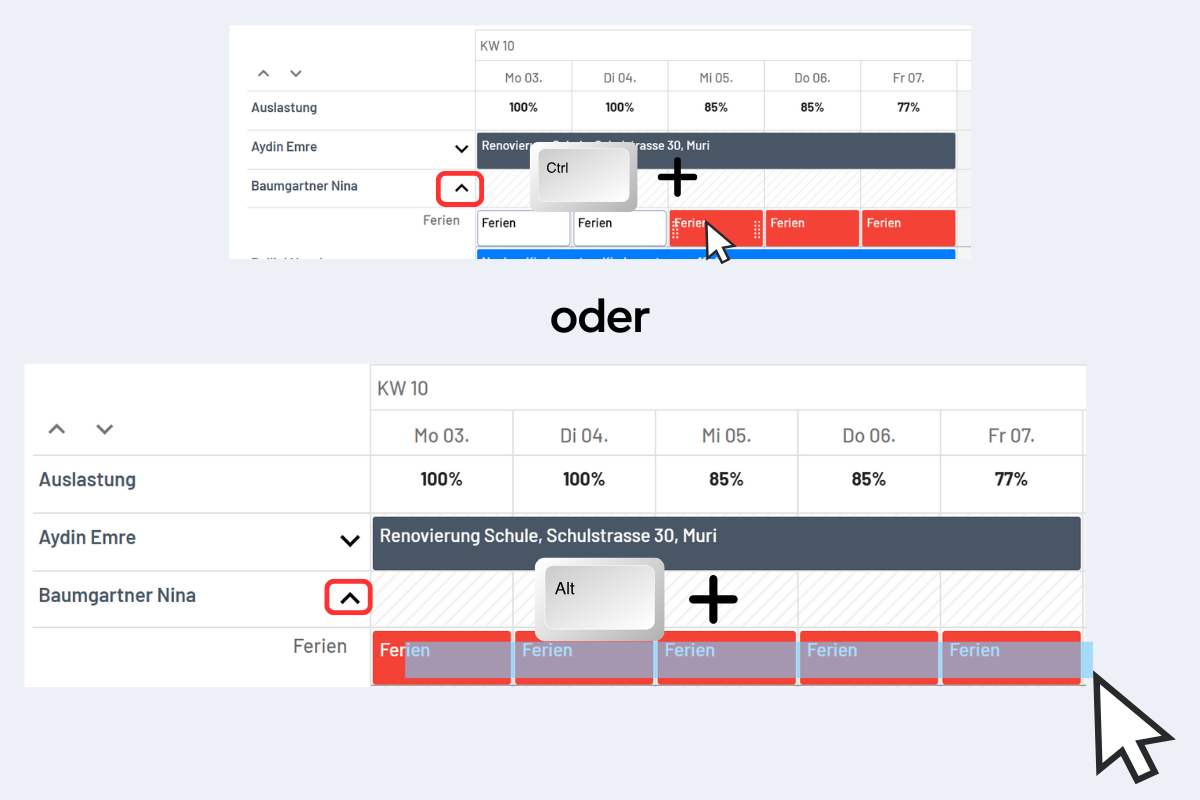
The first step, whether copying or moving, is always to select the relevant dispositions. It is recommended to open the detail view for selection (more on this in the chapter Selecting Multiple Dispositions). Selection is done by holding the CTRL key and clicking the desired disposition (see Fig. Select Dispositions, top) or by holding the ALT key and dragging a rectangle over the desired dispositions with the mouse (see Fig. Select Dispositions, bottom).
Copying a Disposition
There are two different ways to copy dispositions:
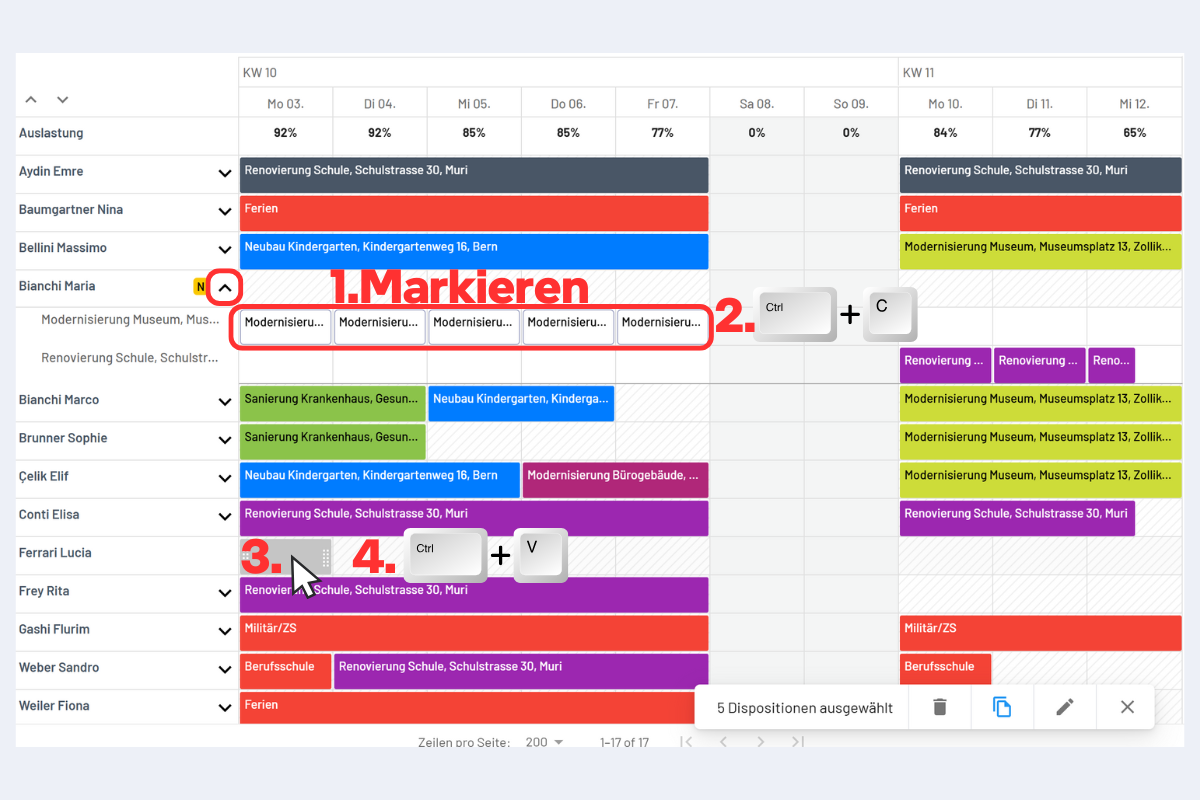
Variant 1 (see Fig. Copy Disposition Variant 1)
- Select the desired disposition (or multiple).
- Copy with CTRL + C.
- Click the desired target location (so it is highlighted in gray).
- Paste with CTRL + V.
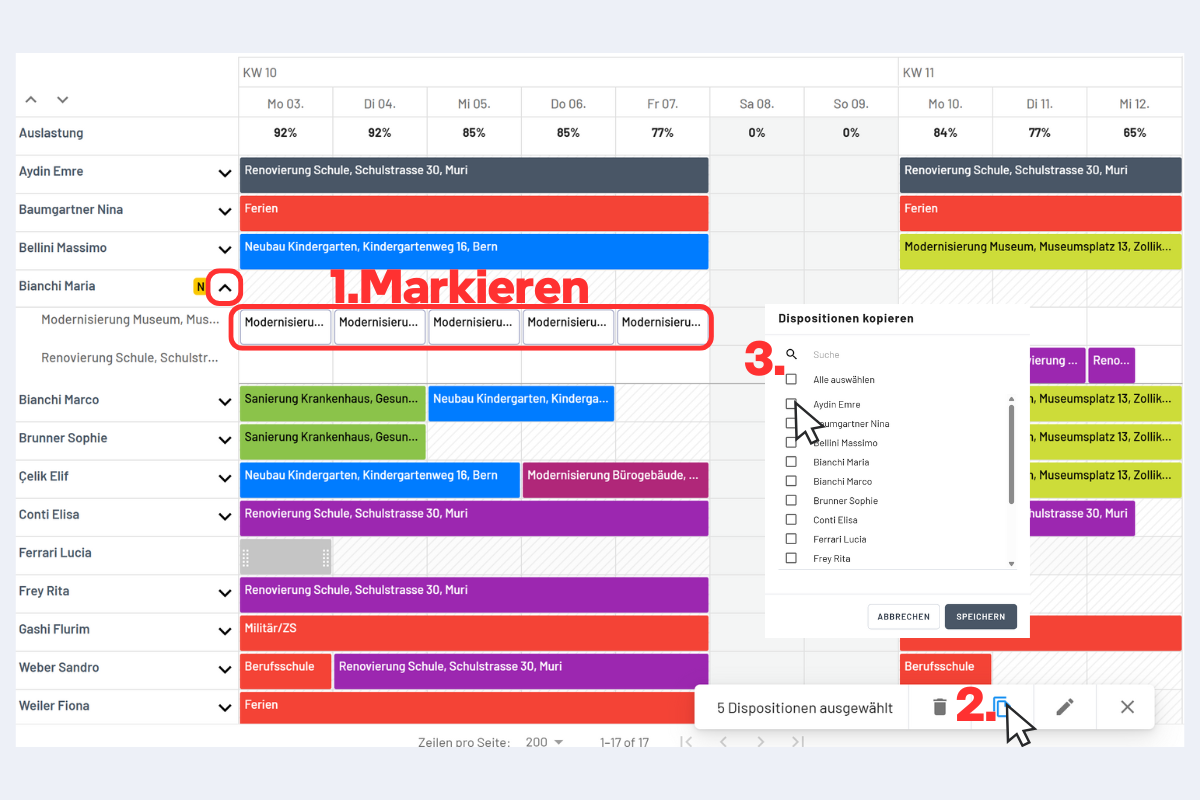
Variant 2 (see Fig. Copy Disposition Variant 2)
- Select the desired disposition (or multiple).
- Click the copy icon in the bottom right.
- Select the desired employee and save.
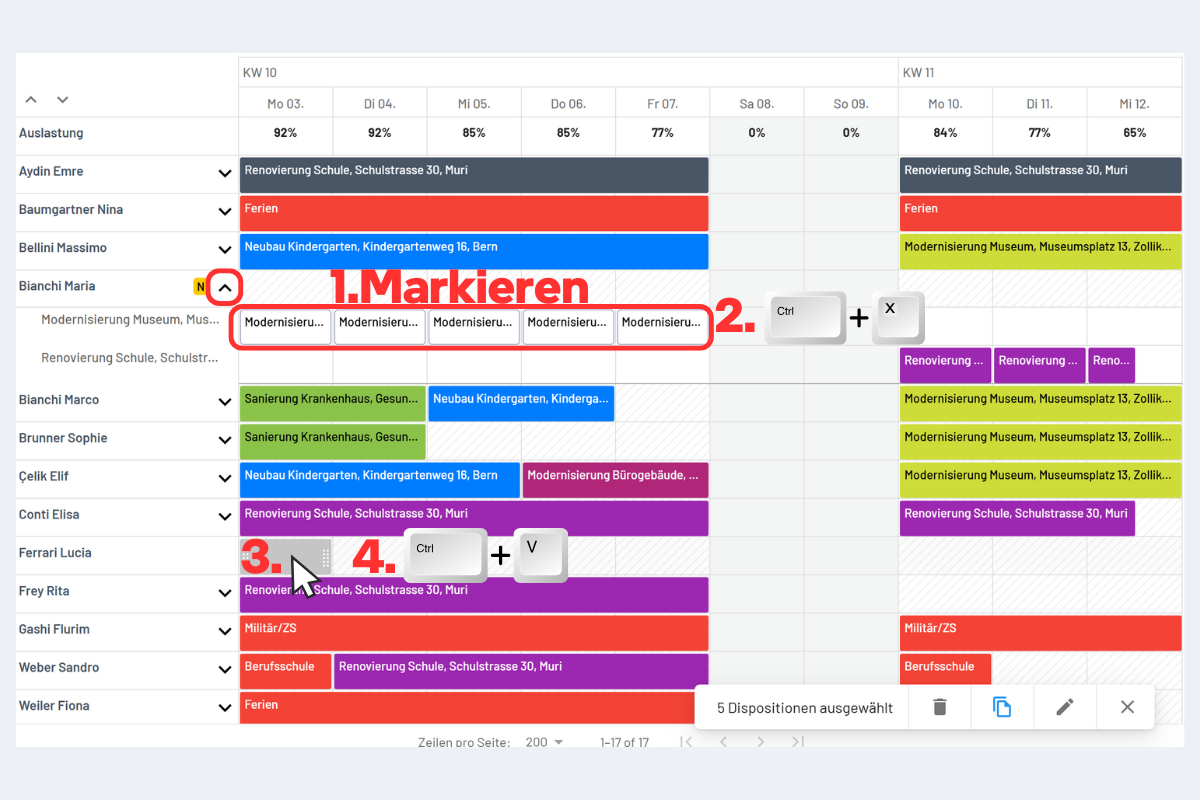
Moving a Disposition to Another Employee
- Select the desired disposition (or multiple).
- Cut with CTRL + X.
- Click the desired target location (so it is highlighted in gray).
- Paste with CTRL + V.
Moving a Disposition on the Timeline (same employee)
- Select the desired disposition (or multiple).
- Drag to the target location with the mouse (left or right).