Details of an Existing Disposition
A click on an existing disposition opens a window with the details of this disposition (see Fig. Existing Disposition Details).
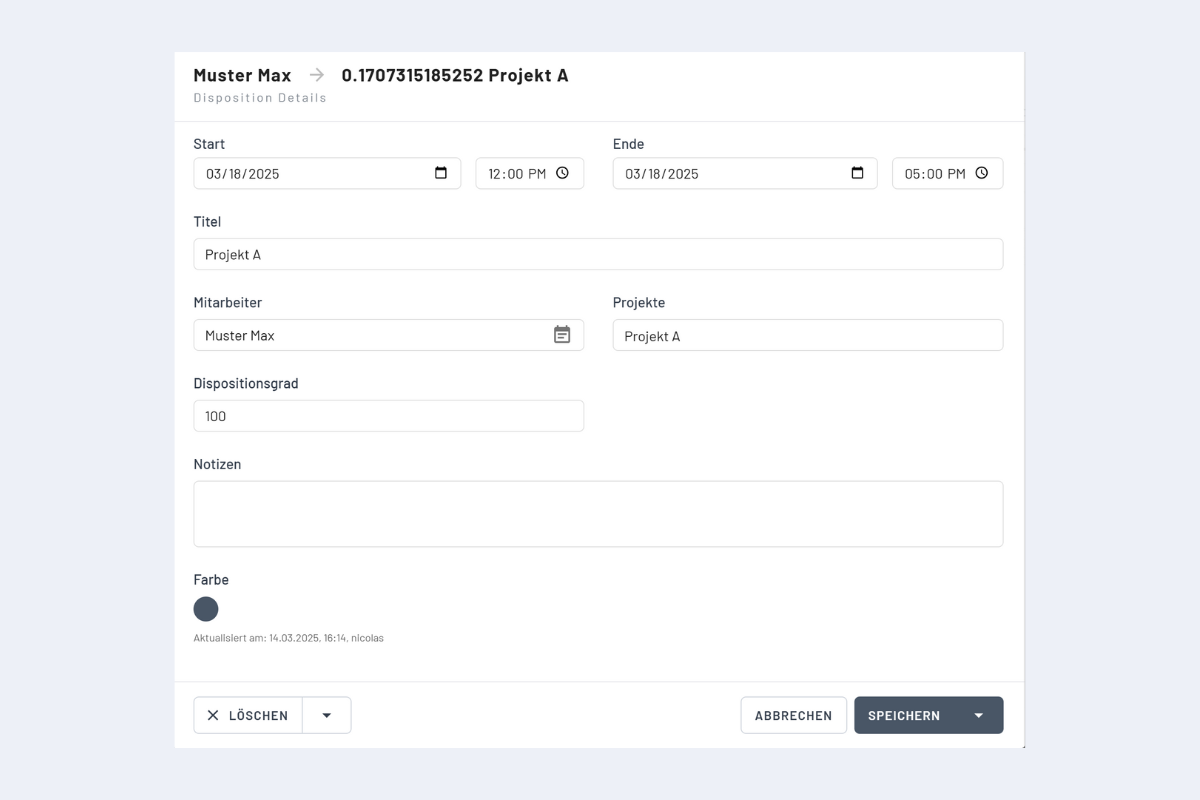
In this window, all fields of the disposition can be adjusted. Start and End can be changed and determine the period of the disposition. The smallest time unit is one minute.
If the Employee is changed, the disposition is assigned to the new employee – provided they are available during the selected period.
If the Project is changed (this can also be a Service or an Absence), the disposition is assigned to the new entry. Switching between Project, Service, or Absence is not possible. In this case, the disposition must be deleted and recreated.
By adjusting the Utilization Rate, an employee can be assigned to multiple projects simultaneously – for example, if they manage multiple assignments and decide themselves when and where they work. The sum of the utilization rate must not exceed 100% for a specific period. If the value is below 100%, the corresponding percentage is displayed in the bar at the bottom of the disposition (more on this in the chapter Employees / Create New Disposition in Employee View).
Additionally, Notes for the disposition can be edited.
Below the color selection, it shows who last edited the disposition and when this occurred.