Editing a filter
There are two ways to adjust a filter: permanently via filter management or directly in the app. The latter is only temporary and does not affect the saved filter. Both options are described below.
Edit permanently
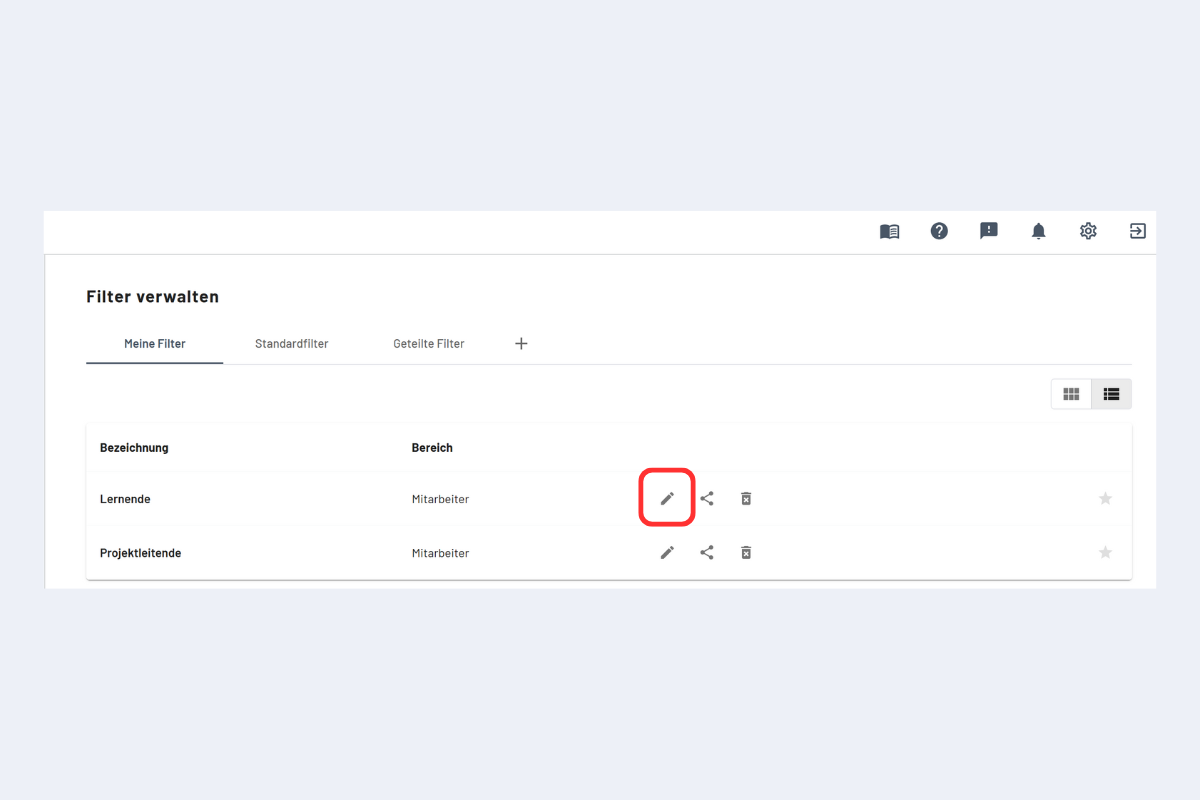
How to permanently edit an existing filter:
- Open filter management.
- Select the desired filter.
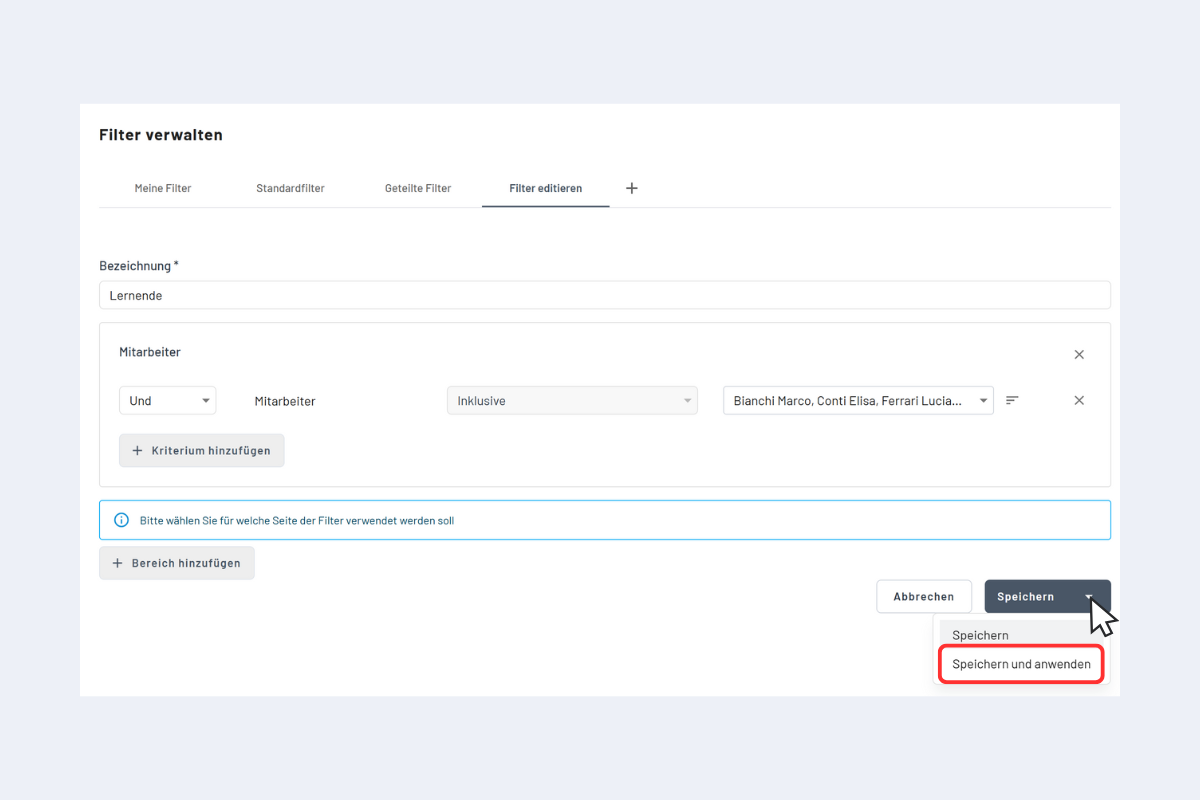
- Save the changes.
If the edited filter should be active right away, click the arrow to the right of “Save” and choose “Save and apply,” then confirm. The filter becomes active immediately.
You can also simply save the filter. The next time you load it in the app, the changes are active. Alternatively, disable the filter once and enable it again – the latest changes will then apply.
Edit temporarily
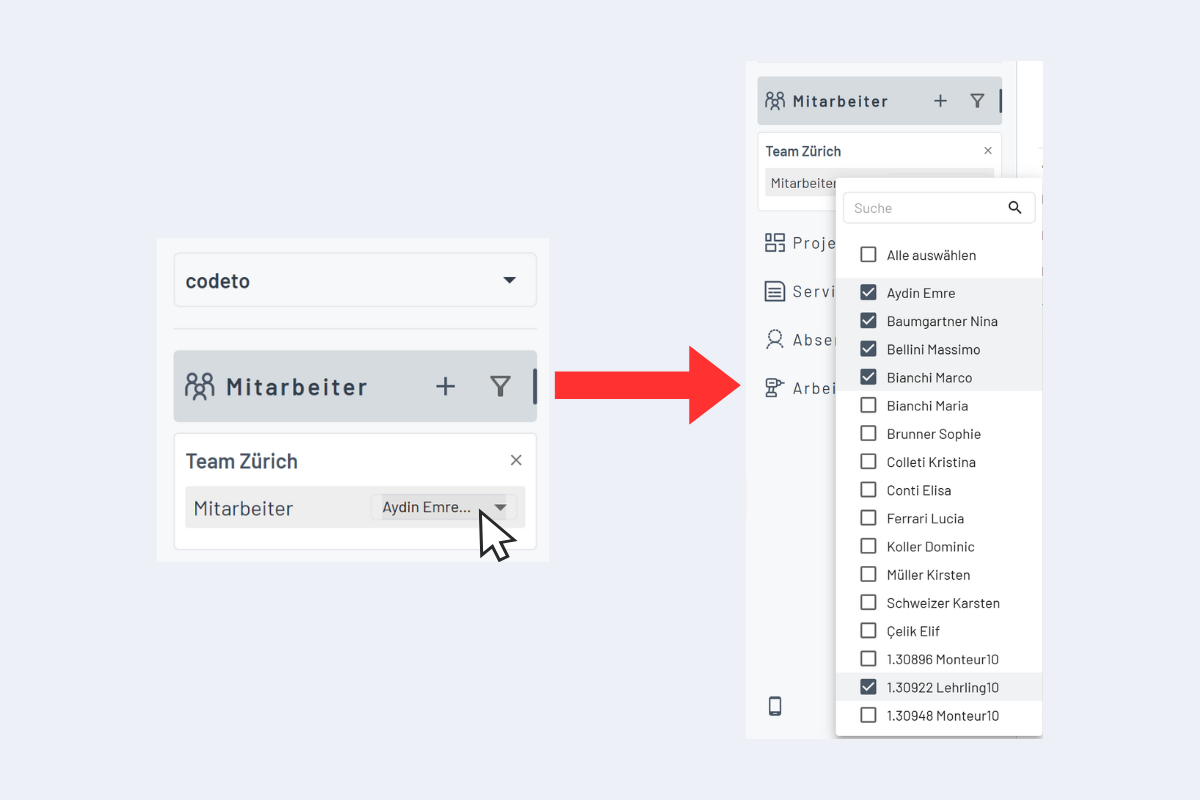
Active filters can also be adjusted temporarily right in the sidebar. This is useful if you want to test the impact on utilization by adding extra employees to a team filter without changing the original filter.
Benefit: vacancies can be quickly assigned to teams, departments, or any (temporarily extended) filters and the result can be assessed immediately.
title: "Editing a filter" sidebar_position: 4.5
Editing a filter
There are two ways to adjust a filter: permanently via filter management or directly in the app. The latter is only temporary and does not affect the saved filter. Both options are described below.
Edit permanently
How to permanently edit an existing filter:
- Open filter management.
- Select the desired filter.
- Save the changes.
If the edited filter should be active right away, click the arrow to the right of “Save” and choose “Save and apply,” then confirm. The filter becomes active immediately.
Shared filters and permissions:
- With write access: you can edit the shared filter directly. Note: changes also apply to the person who shared it with you.
- Edit only for yourself: if you want changes to apply only to you, create a copy (copy icon). The copy appears under “My filters” and can be edited there.
- With read access: direct editing is not possible. Create a copy; it appears under “My filters” and can then be edited.
You can also simply save the filter. The next time you load it in the app, the changes are active. Alternatively, disable the filter once and enable it again – the latest changes are then applied.
Edit temporarily
Active filters can also be adjusted temporarily right in the sidebar. Useful if you want to test the impact on utilization by adding extra employees to a team filter without changing the original filter.
Benefit: vacancies can be quickly assigned to teams, departments, or any (temporarily extended) filters and evaluated immediately.
Shared filters cannot be overwritten directly. If needed, create your own copy (copy icon); it appears under “My filters” and can be edited freely.