Create New Filter
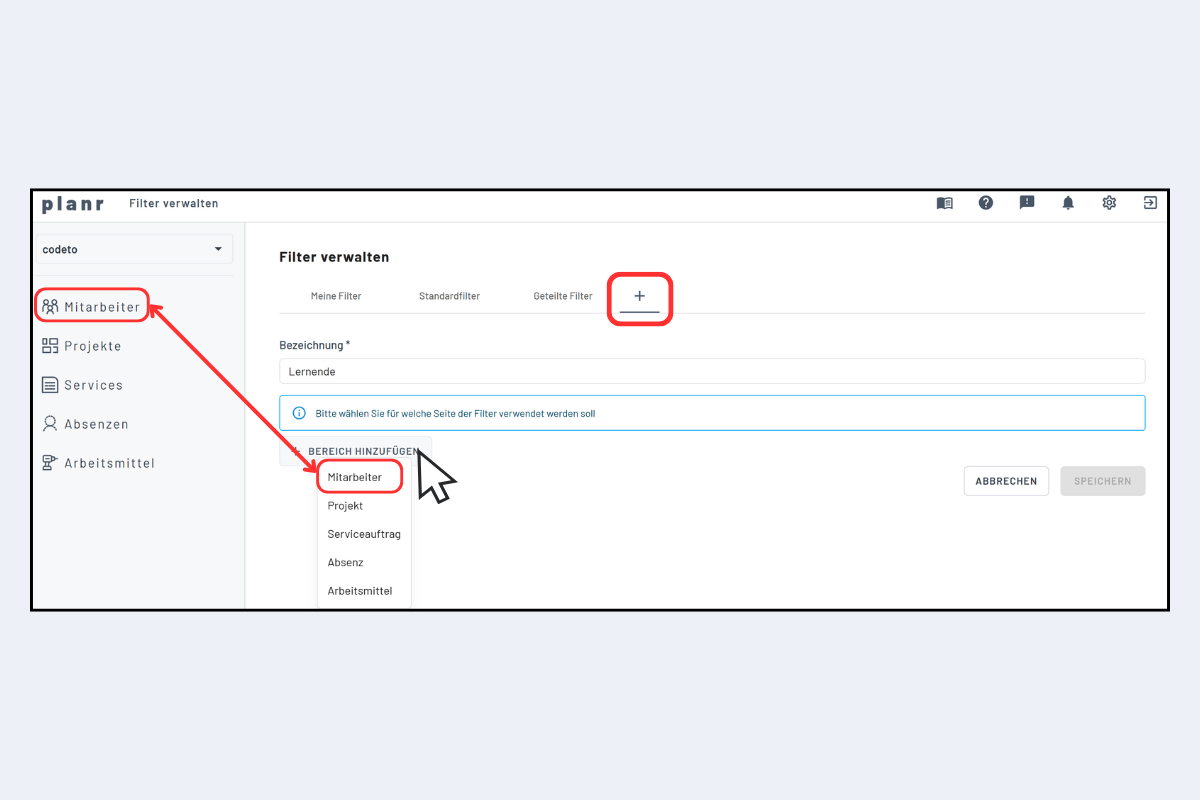
A new filter can be created using the plus symbol (see Fig. Create new filter).
- Filter Name: This will be displayed later when the filter is used.
- Add Area: In this example, the "Employee" area is assigned, creating a filter for the employee view. The areas correspond to the different views: Employees, Projects, Service, Absences, and Equipment.
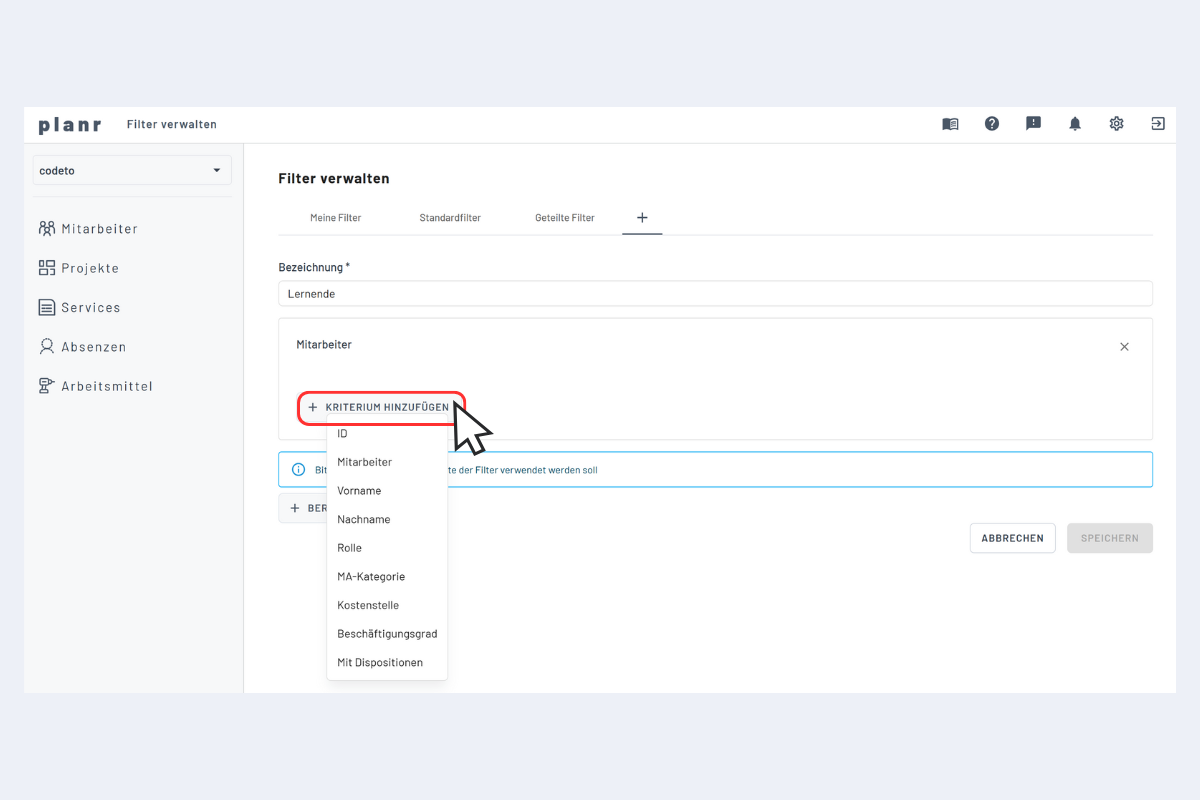
- Add Criterion: Select the desired criterion to filter by. For example, if you want to filter for all apprentices, the role is determined as the criterion.
- Specify Criterion: The selected criterion is further narrowed down. In this example, all apprentices are to be filtered.
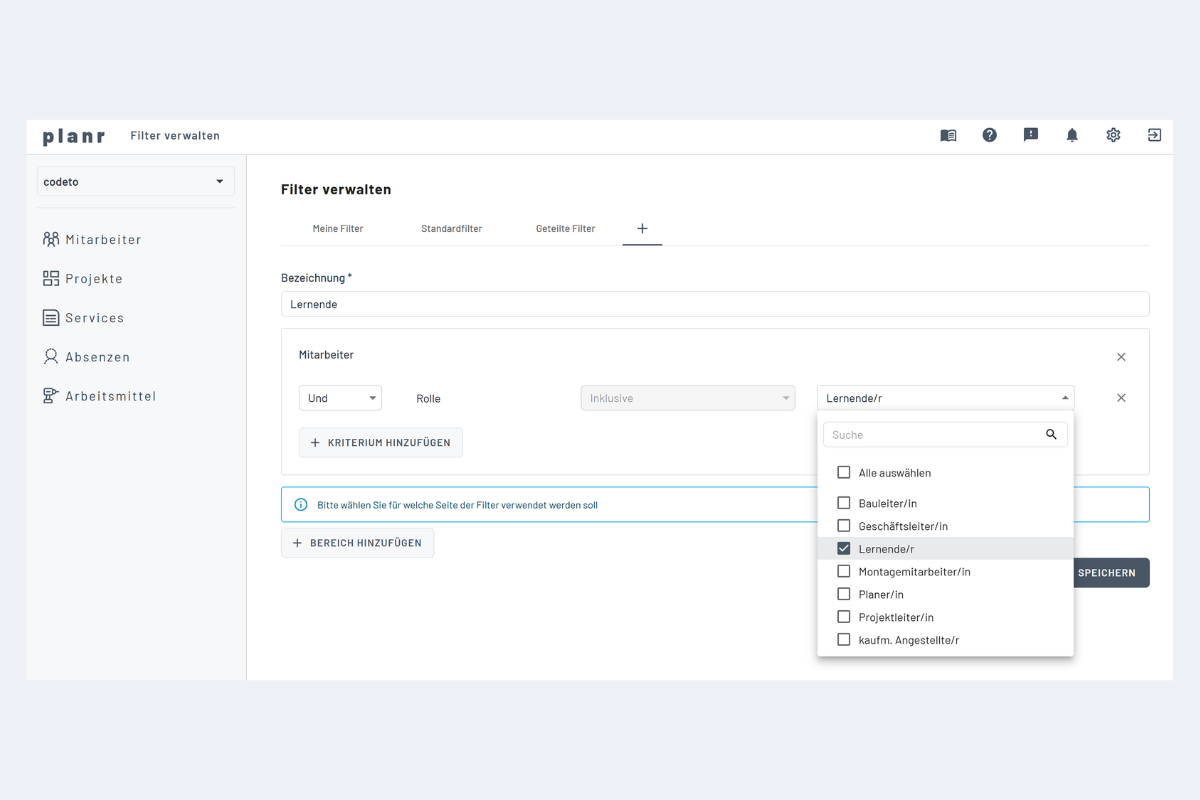
Multi-level filters can also be created for even more targeted filtering. You can specify whether the filters should be combined with AND / OR.
For example, an additional area with another criterion and specification can be added – such as Apprentices working on Project A.